

Internal linking sounds simple, but it quickly gets messy as your site grows. It becomes hard to track which pages connect properly.
Many posts end up with no internal links at all. This creates orphan pages and weakens your site structure.
Even if your content is good, poor linking can hurt your rankings. Search engines may struggle to understand your content relationships.
Doing everything manually takes time and effort. You can easily miss important links or use the wrong anchor text.
That’s where Rank Math AI Link Genius becomes useful. It helps you find, fix, and build internal links automatically.
Common Internal Linking Issues in WordPress
Many WordPress sites have orphan posts with no incoming links. These pages are hard for search engines to find and rank.
Some pages have too many links, while others have very few. This creates an unbalanced structure and weakens SEO.
Using irrelevant anchor text is another common mistake. It confuses both users and search engines about your content.
Broken links and poor link distribution also hurt performance. Important pages often don’t get enough link value to rank.
What Makes Rank Math AI Link Genius Different
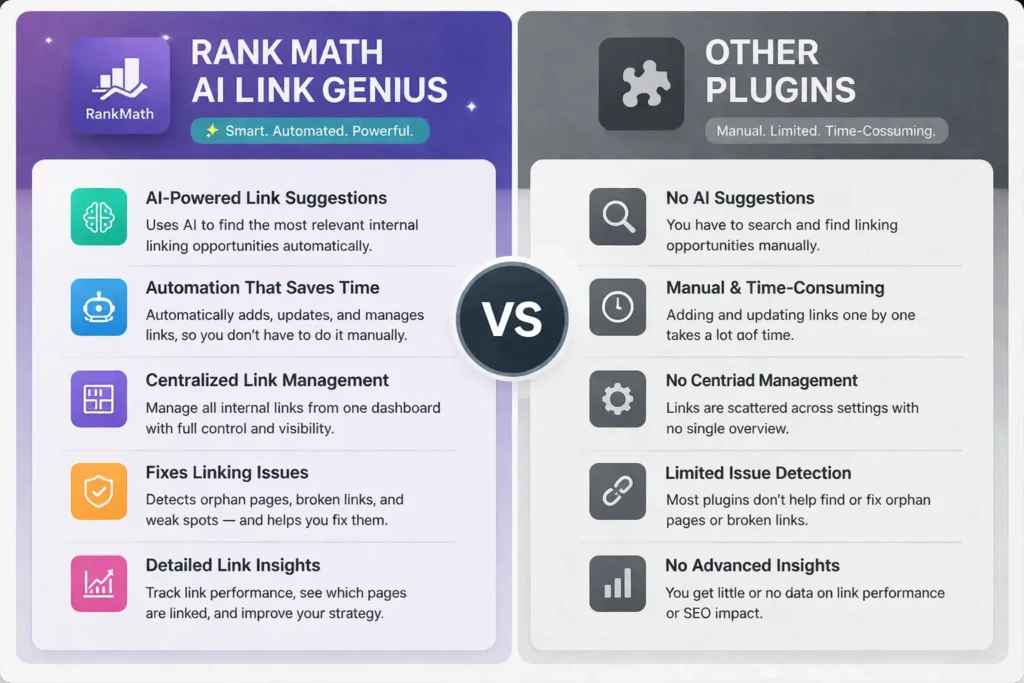
Rank Math AI Link Genius stands out because it uses AI to suggest internal links automatically. It finds the best linking opportunities based on your content.
Compared to manual linking, this saves a lot of time and effort. You don’t need to search pages or add links one by one.
It also gives you a centralized dashboard to manage everything. You can track, edit, and fix links from one place.
This makes internal linking faster, more organized, and easier to handle.
How to Set Up Link Genius (Quick Setup Guide)
To get the Rank Math Link Genius features, you have to go to the RankMath.com official website.
Then, click on the link below to visit the official Rank Math homepage. Once you are there, you can begin downloading and installing the plugin on your WordPress website.
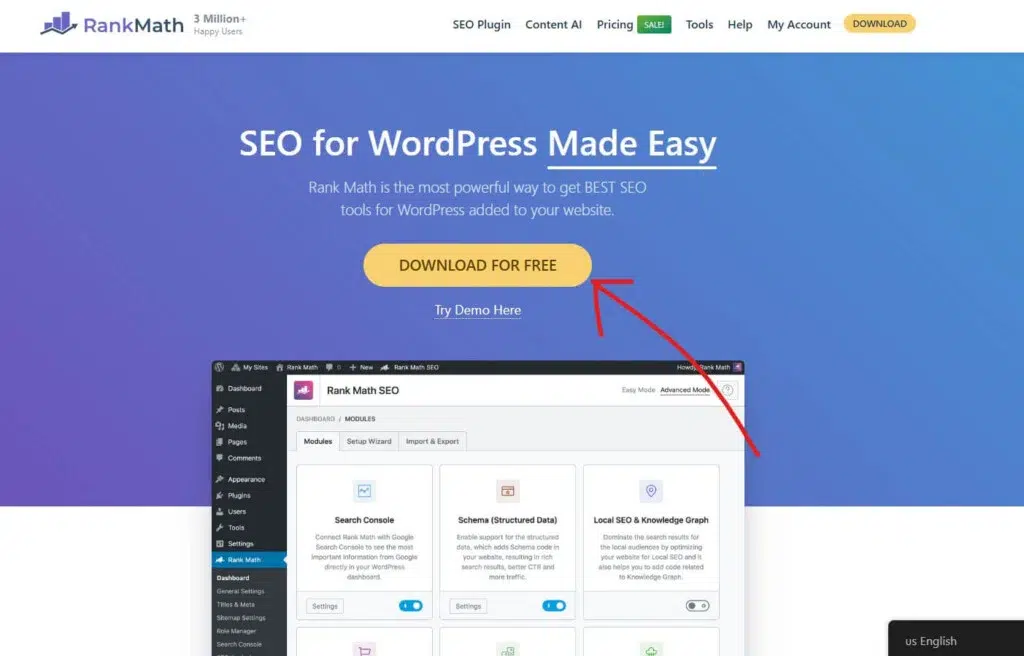
Once you arrive on the Rank Math homepage, look for the Download For Free button and click it to start downloading the plugin to your computer.
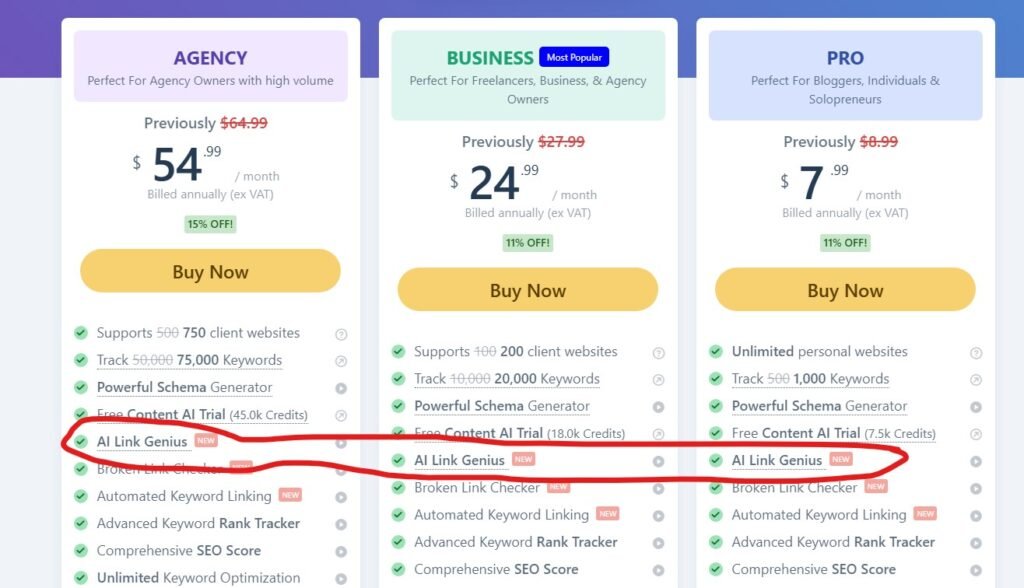
Rank Math AI Link Genius features come with all of their 3 plan. So you can go with their Pro, Business, or Agency plan to use Rank Math AI Link Genius features.
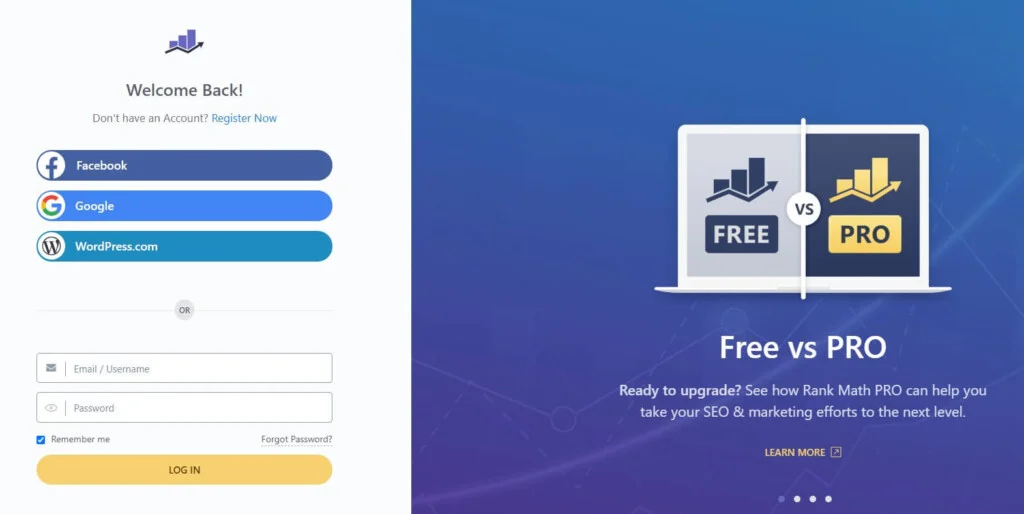
To get started with Rank Math, click on the My Account link in the header and follow the steps to create your free Rank Math account. This account will give you access to all the tools you need to optimize your website.
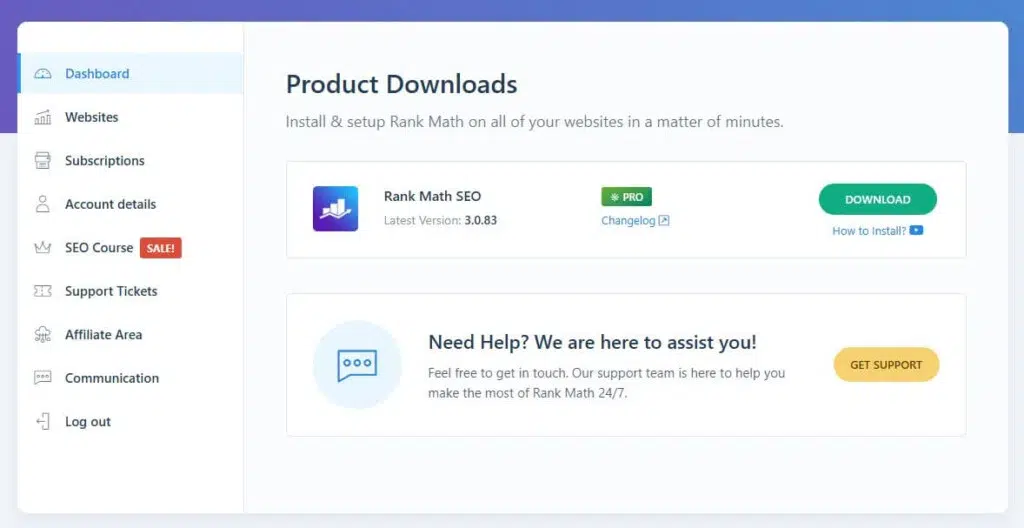
After completing the payment, I log in to the Rank Math dashboard and click on the Download button to download the Rank Math Pro plugin.
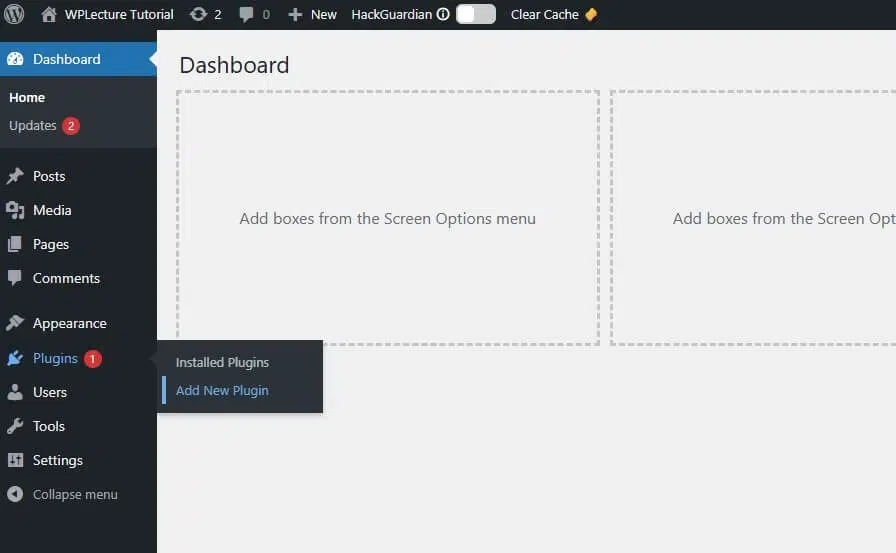
To install the Rank Math plugin on your WordPress website, go to your dashboard, hover over Plugins, and then click on Add New.
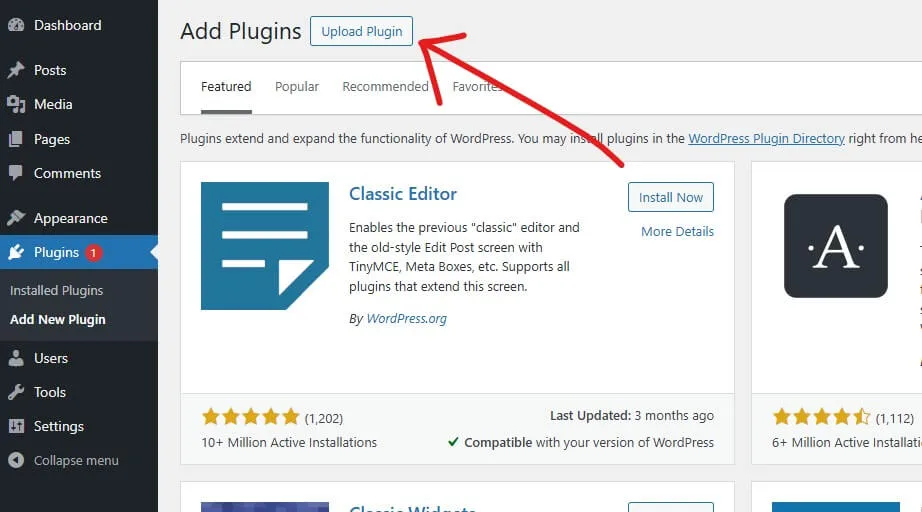
Next, click on the Upload Plugin button at the top of the page to begin adding the Rank Math plugin to your WordPress site.
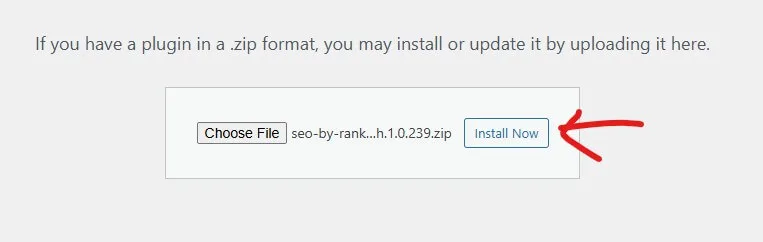
In this step, click on Choose File and select the Rank Math plugin file you just downloaded from your account. After selecting the file, click Install Now to add the plugin to your WordPress website.
Once the installation is complete, make sure to click Activate to start using Rank Math on your site.
Then the Rank Math AI Link genius features will enable automatically.
Fixing Orphan Pages with Link Genius
Orphan pages are posts or pages on your website that have no internal links pointing to them. This means neither users nor search engines can easily find them through your site structure.
Even if the content is valuable, orphan pages often don’t get indexed or ranked properly. Without internal links, they miss out on link authority and visibility, which can hurt your overall SEO performance.
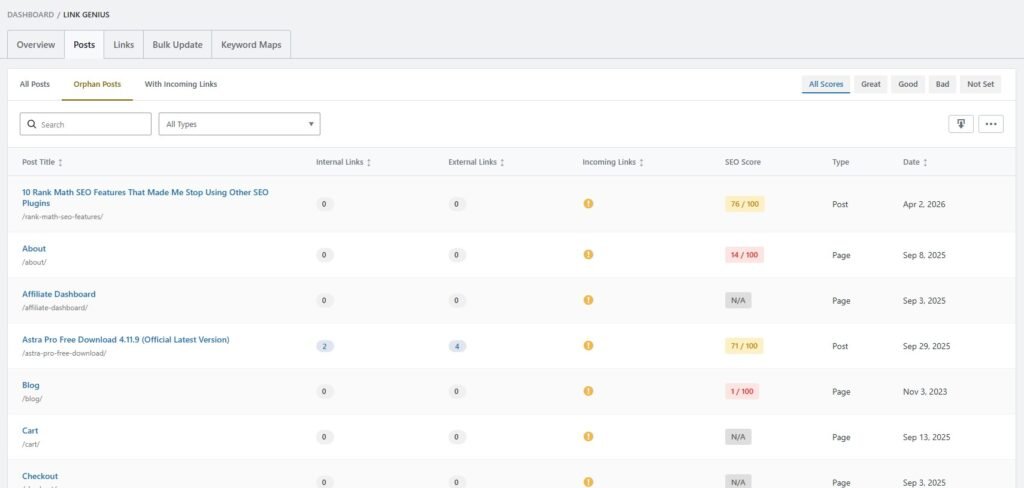
To orphan a post with the help of RankMath AI Link Genius features, you have to go to the Link Genius page, then Post, then click on orphan post.
On this page, you’ll find all the page posts with no incoming links.
To add a link to those orphan posts, you have to go with the manual method, or go with the keyword maps features.
Using Keyword Maps for Auto Internal Linking
Keyword Maps in Rank Math help you automate internal linking based on specific keywords. Instead of adding links manually, you can assign a keyword to a target URL, and the tool will automatically create links across your content.
This makes internal linking faster and more consistent. It also ensures your important pages get linked properly without missing opportunities.
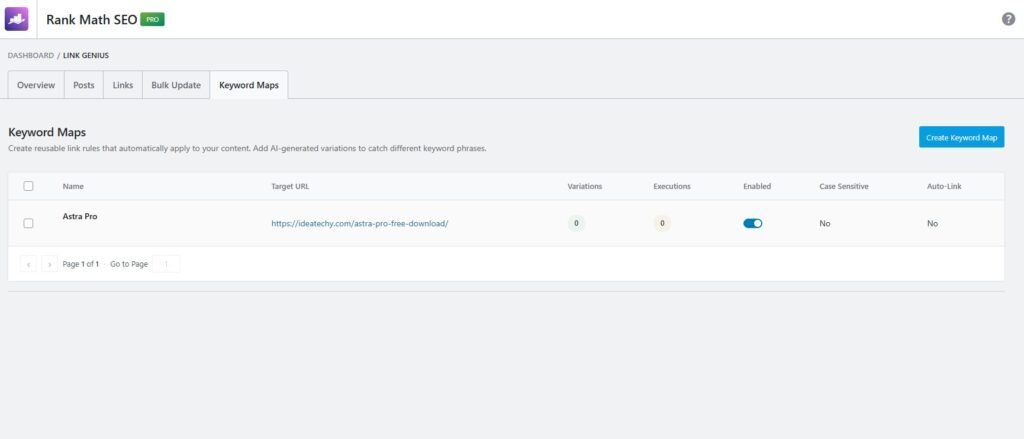
To create backlinks automatically, you have to go with these features.
At first, you have to click on the Create Keyword Map button to start this process.
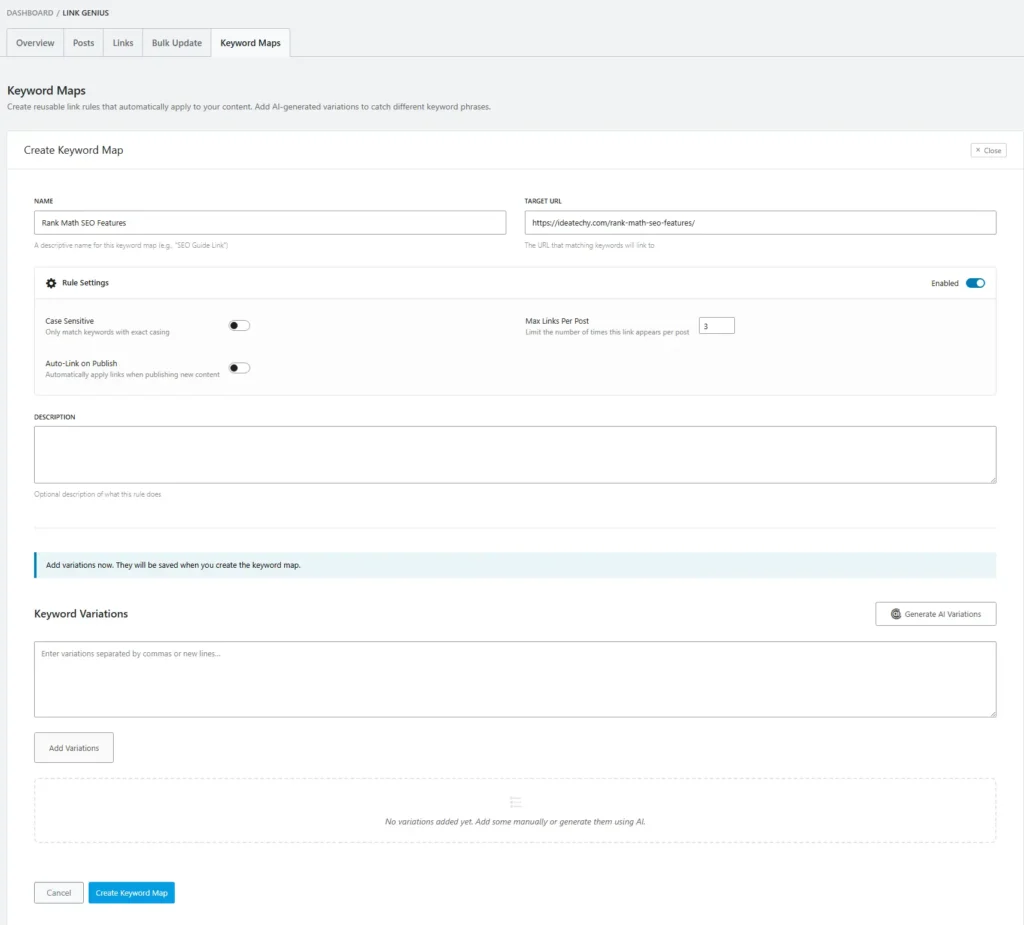
After coming to this Create Keyword Maps first step, you have to click on Name, and type your project name. Then, in the Target URL box, you have to type your URL.
Then you have to scroll down and click on the Create Keyword Maps to go to the second step.
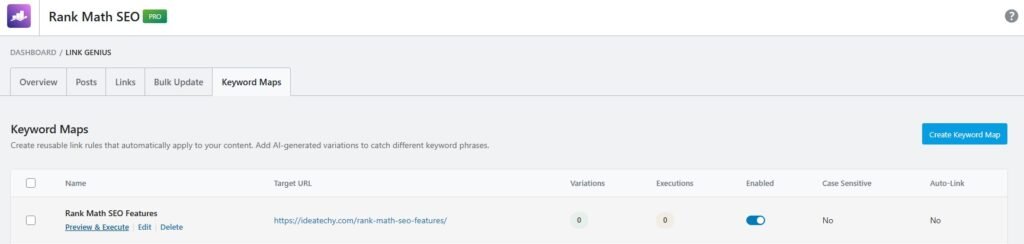
Then you have to click on the Preview & Execute text to start keyword maping.
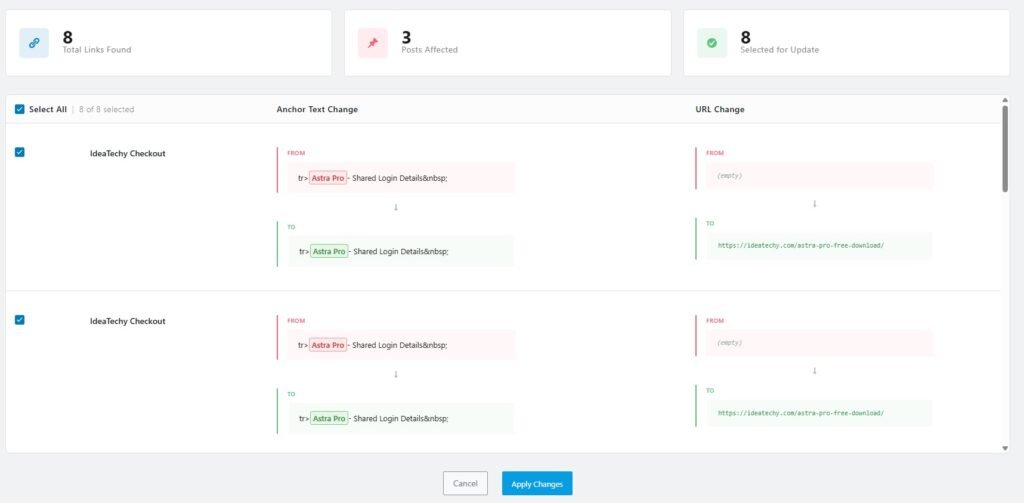
When you click on the text, this page will open. Now you’ll see a lot of backlink opportunities.
To do it, you just have to click on the Apply changes button.
Fixing Broken Links and Redirect Issues
Broken links are a common problem that can hurt both user experience and SEO performance. When users click a link and land on a 404 page, it creates frustration and reduces trust.
With Rank Math Link Genius, you can easily find broken internal links across your site. It highlights these issues so you can fix or replace them quickly.
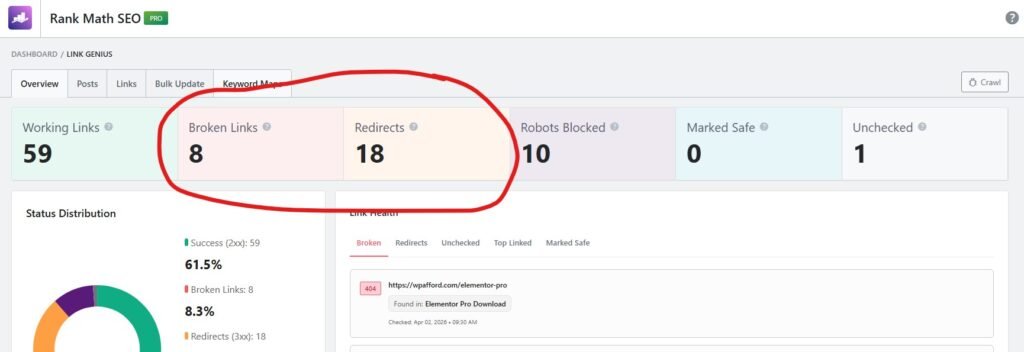
To find broken links and redirections, you need to go to the overview page and click on Broken Links or Redirects that you want to fix.
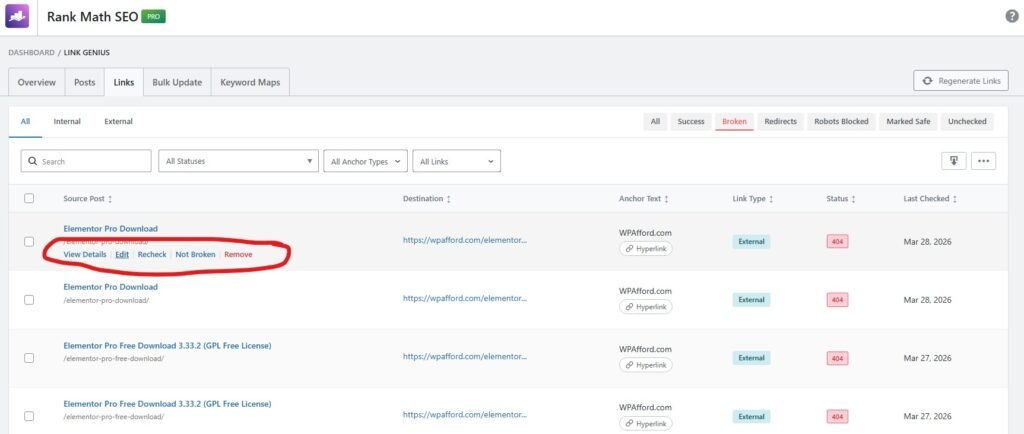
Then all the broken links will appear. Now you have a few different options: View details, Edit, Recheck, Not Broken, and Remove.
You can do whatever you want. To edit the broken link or redirect link, you just have to click on it.
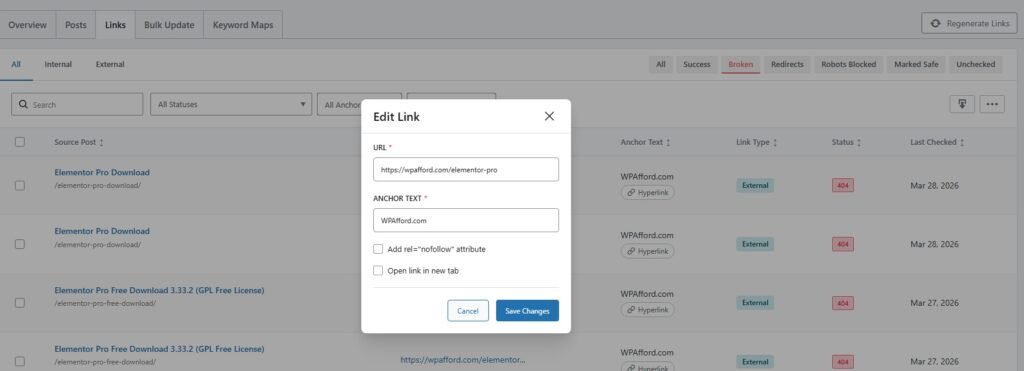
Then this page shows the broken links section inside the Links tab of Rank Math Link Genius. It lists all links that are returning a 404 error, so you can quickly identify which links are not working.
You can see details like the source post, anchor text, link type, and status. This helps you understand where the broken link exists and how it is used.
The popup window allows you to edit the selected link directly. You can update the URL, change the anchor text, or add attributes like nofollow.
Once updated, you can save changes instantly and fix the issue. This makes it easy to repair broken links without editing posts manually.
Bulk Update & How to Use It?
The Bulk Update feature allows you to change multiple links across your website in one go. Instead of editing each link manually, you can apply changes to URLs or anchor text using simple rules.
You can filter links based on type, status, or content, then update them instantly. This is especially useful when migrating URLs, fixing outdated links, or improving anchor text across your site.
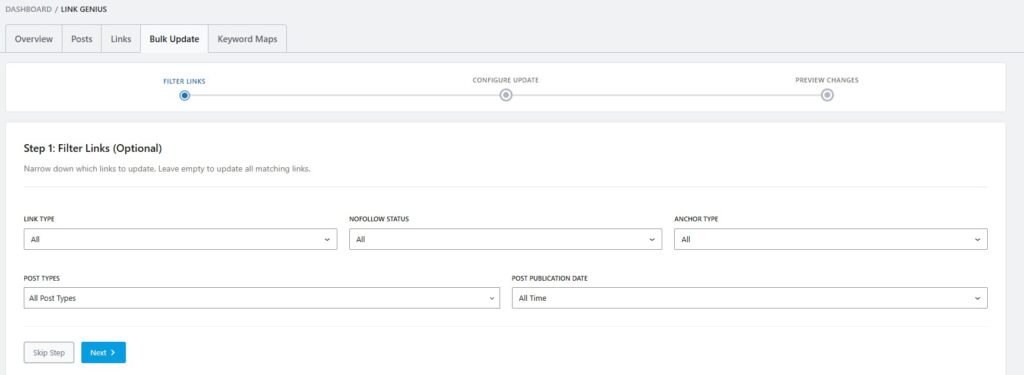
To go with the bulk update, you have to click on the Bulk update tab, then this page opens. Now you need to click on the Next button to go to the next step.
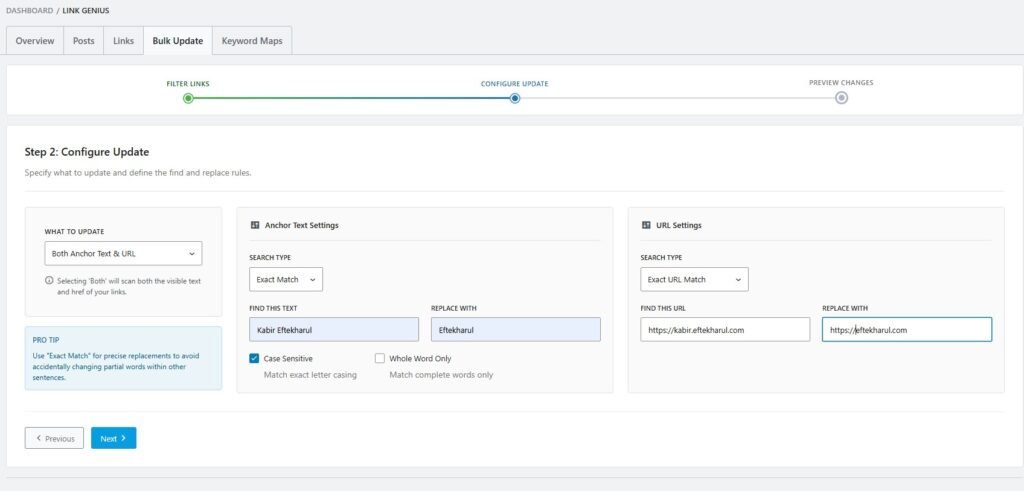
This page is where you configure what changes you want to apply. You can choose to update anchor text, URLs, or both, depending on your goal. This makes it easy to fix links, update branding, or change destinations in bulk.
In the Anchor Text Settings, you define the text to find and what to replace it with. You can also use options like exact match and case sensitivity for more accurate changes.
The URL Settings section lets you replace old URLs with new ones. This is useful for fixing broken links or updating links after a site change. Once everything is set, you can move to the next step to preview the changes.
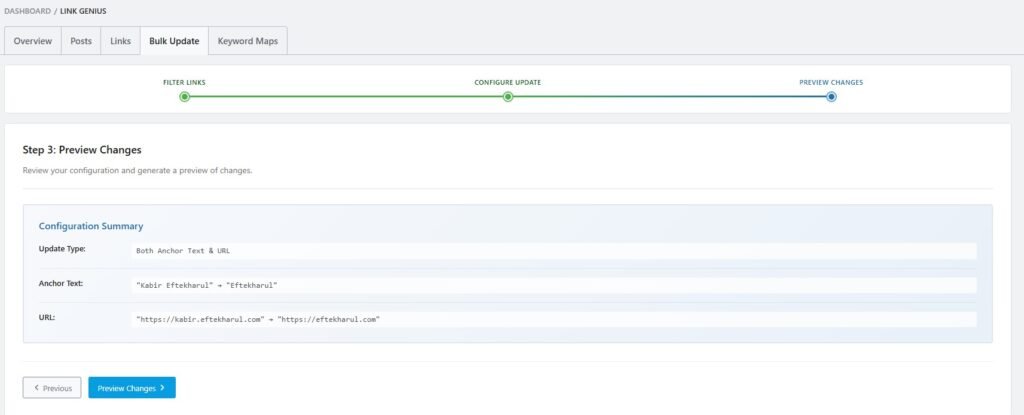
On this last step, you just need to click on the Preview Changes button to finish the process.
Link Opportunities & Related Post Features Explain
The Link Opportunities feature helps you find where to add internal links automatically. It scans your content and suggests relevant linking spots based on context.
The Related Post feature helps you connect similar content across your site. It suggests related posts so you can build a stronger internal linking structure.
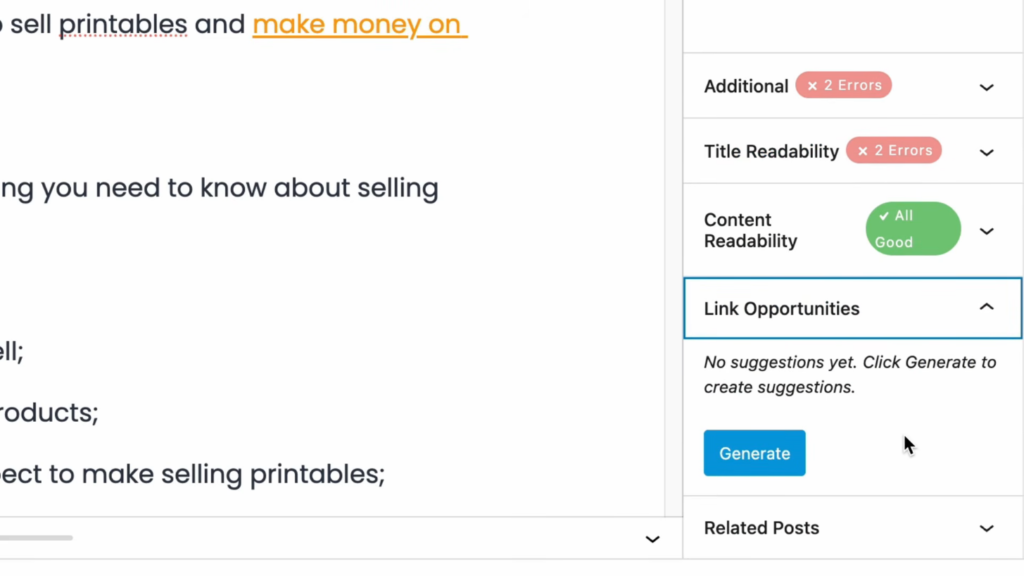
After getting the Rank Math AI Link Genius features, when you open a new post or page. Then you’ll get a new feature called Link Opportunities.
To use these features, you have to expand them, then click on the Generate button to get a lot of Link Opportunities.
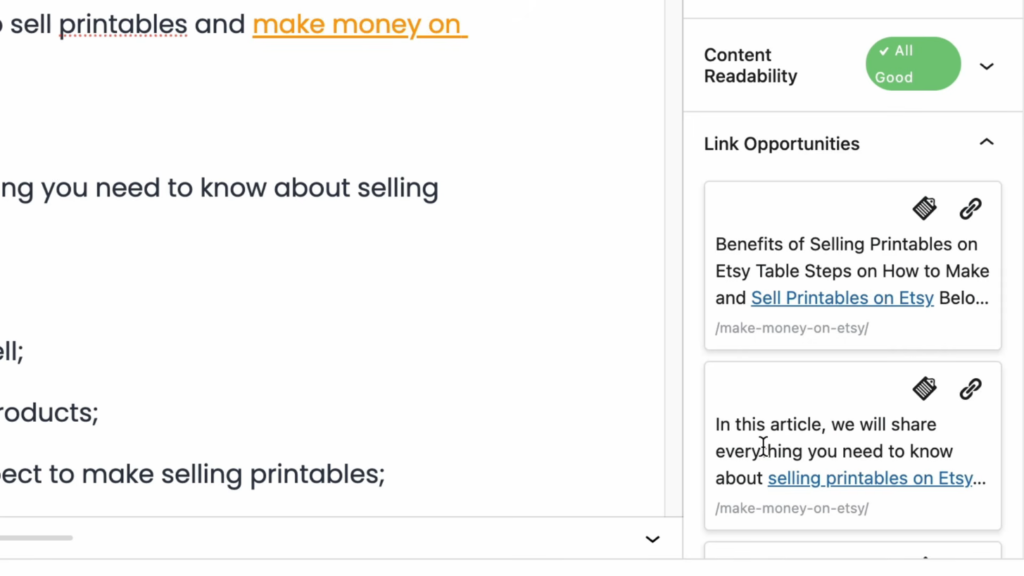
Now you’ll see a lot of Link opportunities, and to create the link generation, you need to click on the link to create a new link.
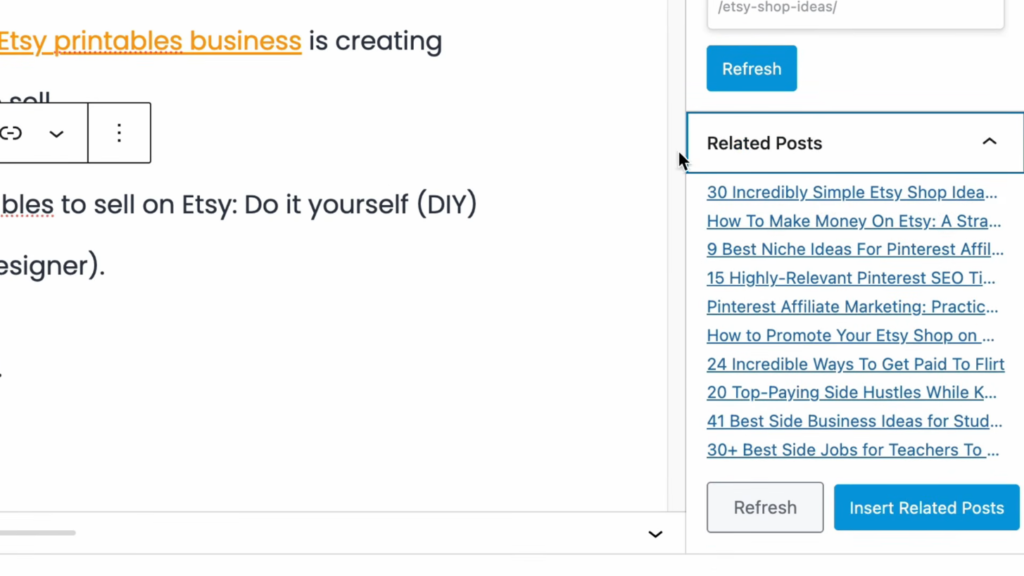
Another great feature of the Rank Math SEO plugin is its Related Posts feature. To get the embedded related post into your content, you need to click on the refresh button to get the related post.
To insert those posts into your content, you need to click on the Insert Related Post to add this into your content.
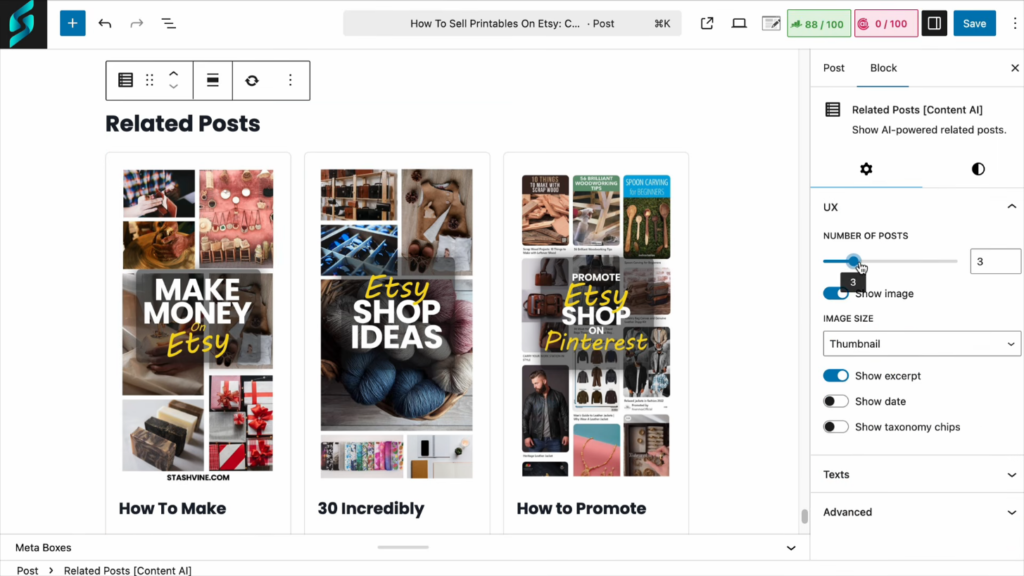
Rank Math also allow you to customize those related post, like how many post you want to display, Image size, text, and a lots of advanced features.
Conclusion
Internal linking used to be one of the most time-consuming parts of my SEO work. I had to manually find pages, add links, and fix issues, which often led to mistakes.
Rank Math AI Link Genius changed that completely with features like AI link suggestions, keyword maps, bulk updates, and link tracking. It helped me fix orphan pages, improve structure, and manage everything from one dashboard.
If you want to save time and build a stronger internal linking strategy, this tool is worth testing. That’s why I personally recommend Link Genius for anyone serious about WordPress SEO.
FAQ
It is a tool that helps you automate and manage internal linking in WordPress.
Yes, it helps you find orphan posts and add internal links to them easily.
Not completely, but it reduces most of the manual work.
Yes, you can update multiple links at once using the bulk update feature.
Yes, the interface is simple and easy to understand.
Yes, better internal linking helps improve rankings and site structure.