
Internal linking helps search engines discover your content and understand how your pages connect. However, finding relevant pages and choosing suitable anchor text manually can become time-consuming.
WordPress offers several plugins designed to simplify this process and uncover valuable linking opportunities. But each plugin approaches internal linking differently, making careful feature comparisons important.
I tested five popular options, including Rank Math AI Link Genius and Link Whisper. I also tested Internal Link Juicer, Interlinks Manager, and Linkilo.
Throughout this comparison, I evaluated their features, usability, and practical internal linking capabilities. My goal is to identify which plugin best suits different WordPress websites and workflows.
Overview of the 5 Internal Link Building Plugins
WordPress offers several plugins that help website owners manage internal links and discover linking opportunities. I selected five popular options to compare their features, usability, and practical value.
Rank Math AI Link Genius: Helps users discover internal linking opportunities and manage links across their WordPress websites.
Link Whisper: Suggests relevant internal links while users create or update WordPress content.
Internal Link Juicer: Automates internal linking by connecting configured keywords with relevant website pages.
Interlinks Manager: Provides tools for managing internal links and analyzing website linking performance.
Linkilo: Offers internal linking tools designed to help users organize and improve their website’s link structure.
Plugin #1: Rank Math AI Link Genius
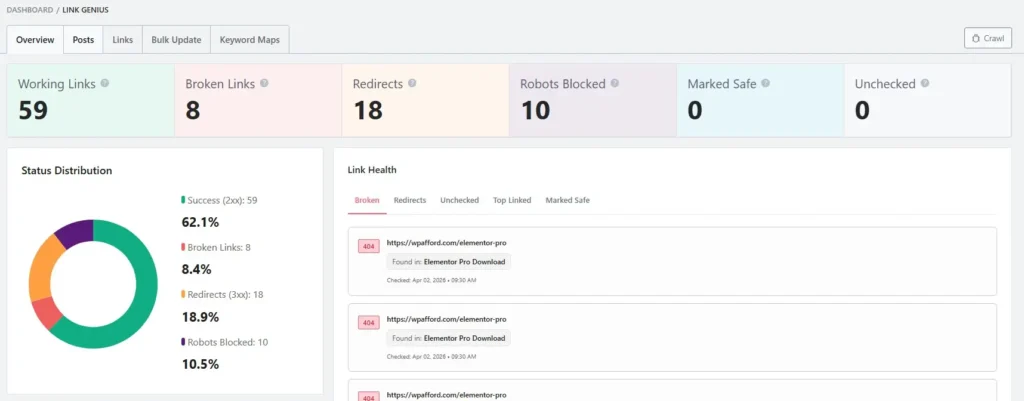
Rank Math AI Link Genius is a paid feature by Rank Math, but it’s worth your money. If you want to go with Rank Math AI Link genius, then let me show you how you can get and setup it.
How to Set Up Link Genius (Quick Setup Guide)
To get the Rank Math Link Genius features, you have to go to the RankMath.com official website.
Then, click on the link below to visit the official Rank Math homepage. Once you are there, you can begin downloading and installing the plugin on your WordPress website.
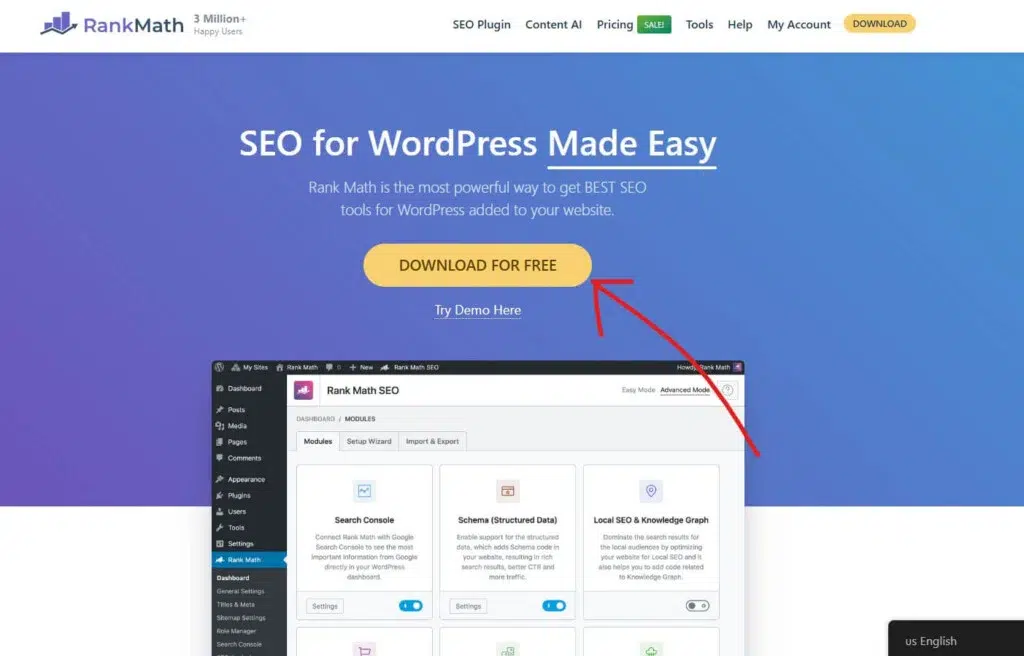
Once you arrive on the Rank Math homepage, look for the Download For Free button and click it to start downloading the plugin to your computer.
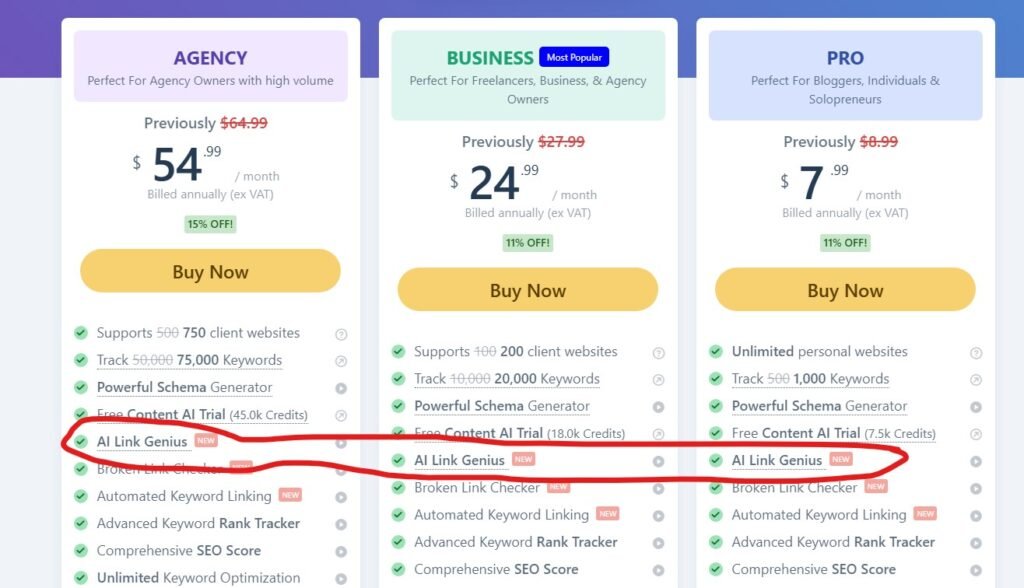
Rank Math AI Link Genius features come with all of their 3 plan. So you can go with their Pro, Business, or Agency plan to use Rank Math AI Link Genius features.
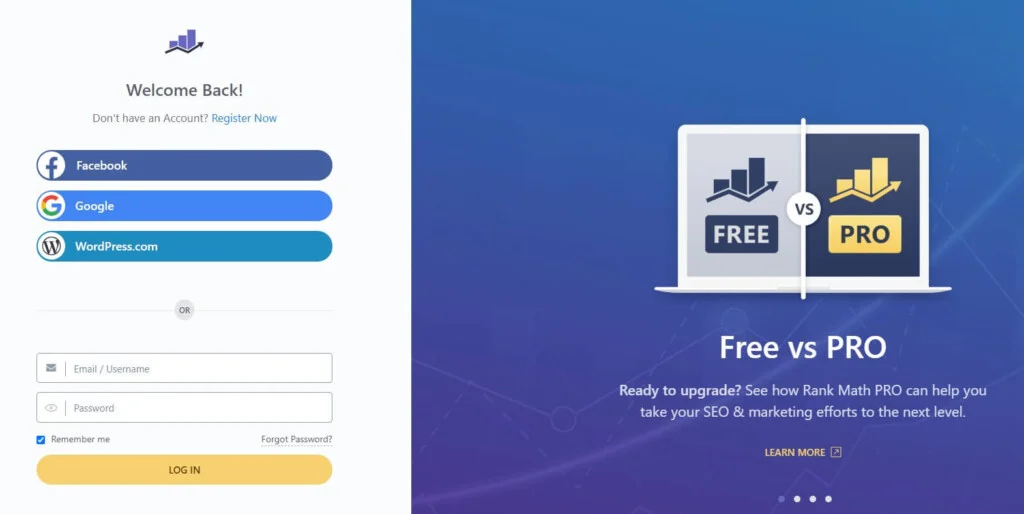
To get started with Rank Math, click on the My Account link in the header and follow the steps to create your free Rank Math account. This account will give you access to all the tools you need to optimize your website.
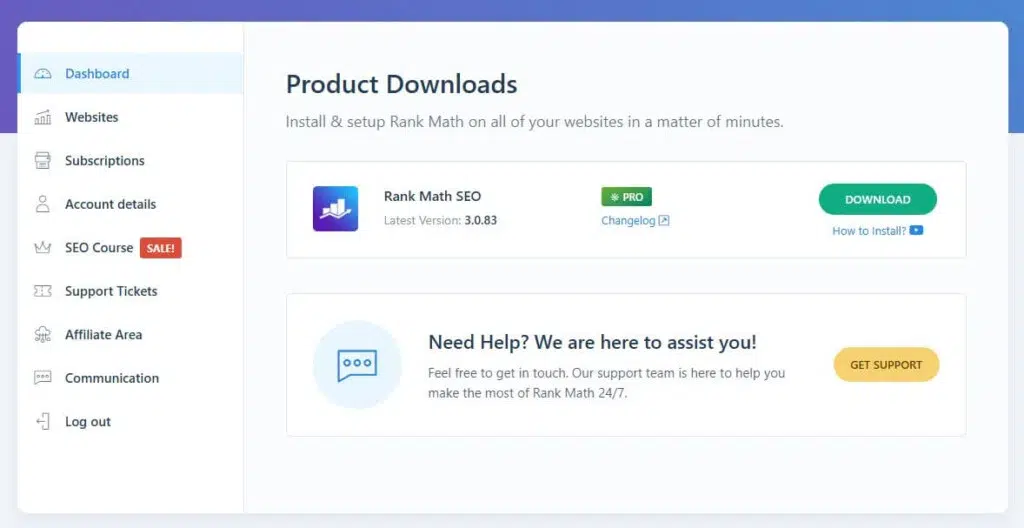
After completing the payment, I log in to the Rank Math dashboard and click on the Download button to download the Rank Math Pro plugin.
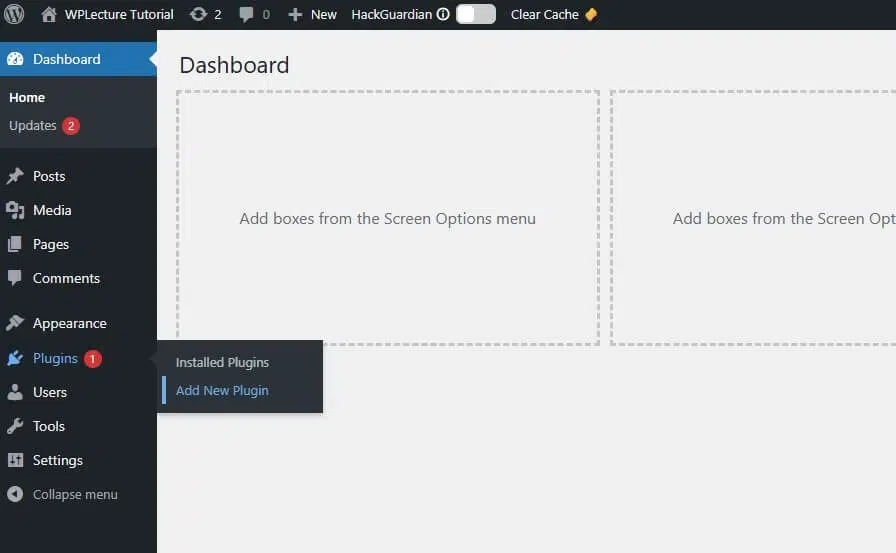
To install the Rank Math plugin on your WordPress website, go to your dashboard, hover over Plugins, and then click on Add New.
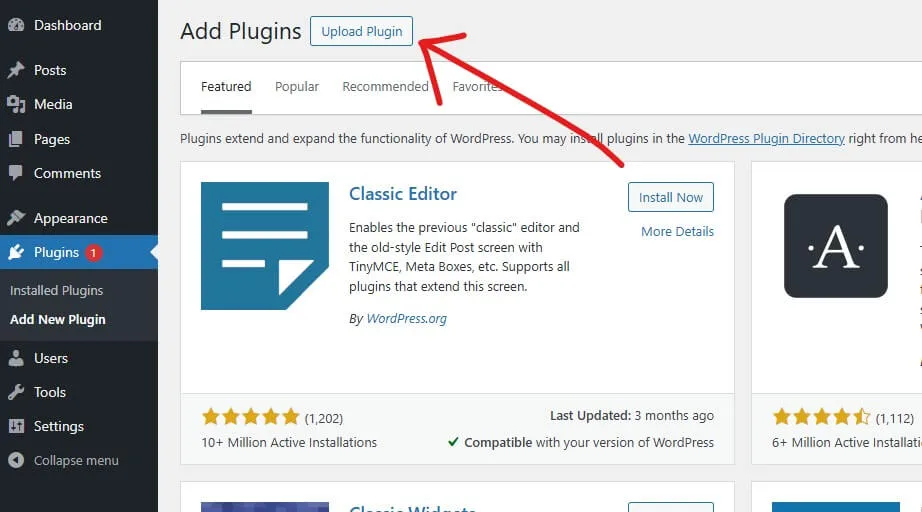
Next, click on the Upload Plugin button at the top of the page to begin adding the Rank Math plugin to your WordPress site.
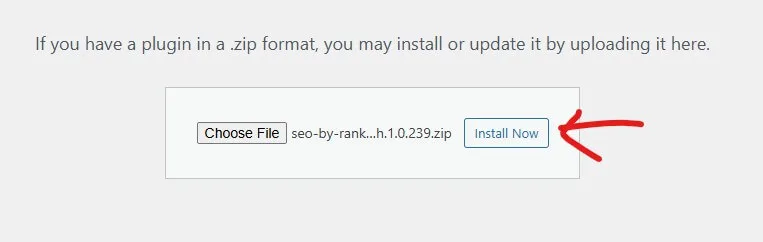
In this step, click on Choose File and select the Rank Math plugin file you just downloaded from your account. After selecting the file, click Install Now to add the plugin to your WordPress website.
Once the installation is complete, make sure to click Activate to start using Rank Math on your site.
Then the Rank Math AI Link genius features will enable automatically.
Fixing Orphan Pages with Link Genius
Orphan pages are posts or pages on your website that have no internal links pointing to them. This means neither users nor search engines can easily find them through your site structure.
Even if the content is valuable, orphan pages often don’t get indexed or ranked properly. Without internal links, they miss out on link authority and visibility, which can hurt your overall SEO performance.
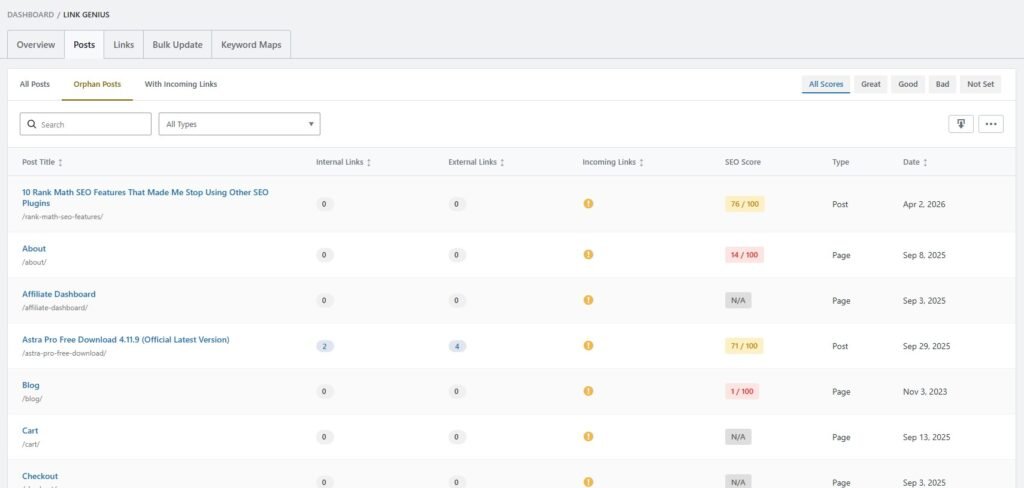
To orphan a post with the help of RankMath AI Link Genius features, you have to go to the Link Genius page, then Post, then click on orphan post.
On this page, you’ll find all the page posts with no incoming links.
To add a link to those orphan posts, you have to go with the manual method, or go with the keyword maps features.
Using Keyword Maps for Auto Internal Linking
Keyword Maps in Rank Math help you automate internal linking based on specific keywords. Instead of adding links manually, you can assign a keyword to a target URL, and the tool will automatically create links across your content.
This makes internal linking faster and more consistent. It also ensures your important pages get linked properly without missing opportunities.
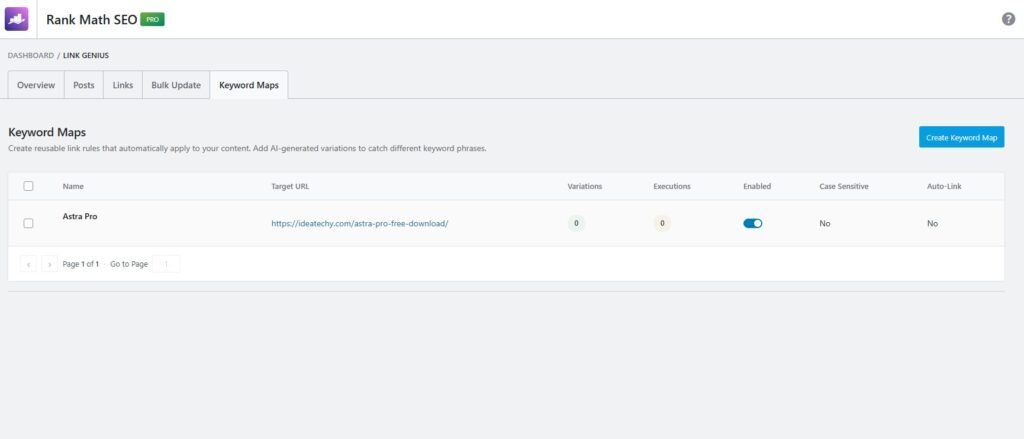
To create backlinks automatically, you have to go with these features.
At first, you have to click on the Create Keyword Map button to start this process.
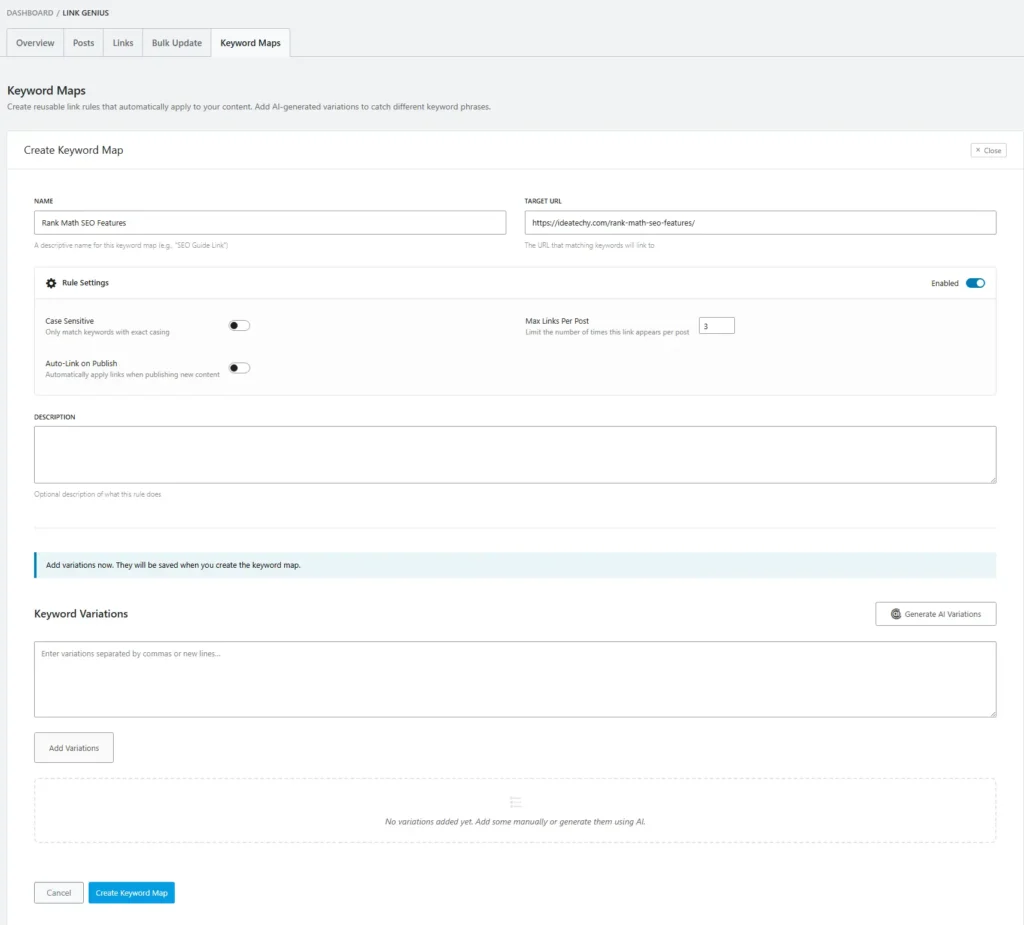
After coming to this Create Keyword Maps first step, you have to click on Name, and type your project name. Then, in the Target URL box, you have to type your URL.
Then you have to scroll down and click on the Create Keyword Maps to go to the second step.
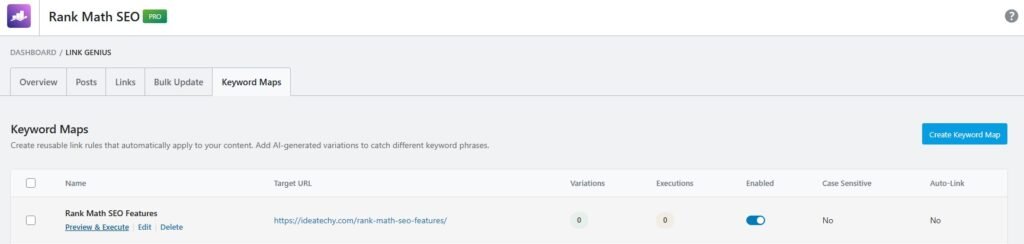
Then you have to click on the Preview & Execute text to start keyword maping.
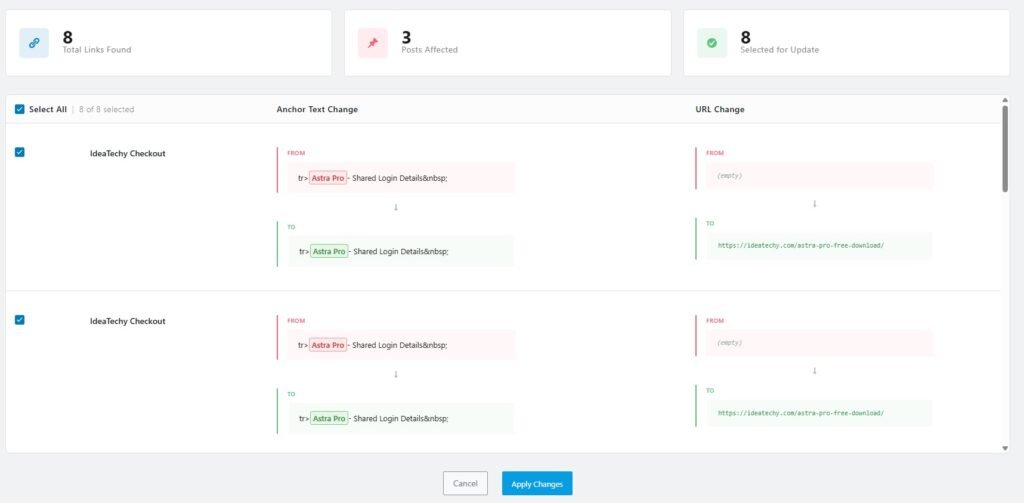
When you click on the text, this page will open. Now you’ll see a lot of backlink opportunities.
To do it, you just have to click on the Apply changes button.
Bulk Update & How to Use It?
The Bulk Update feature allows you to change multiple links across your website in one go. Instead of editing each link manually, you can apply changes to URLs or anchor text using simple rules.
You can filter links based on type, status, or content, then update them instantly. This is especially useful when migrating URLs, fixing outdated links, or improving anchor text across your site.
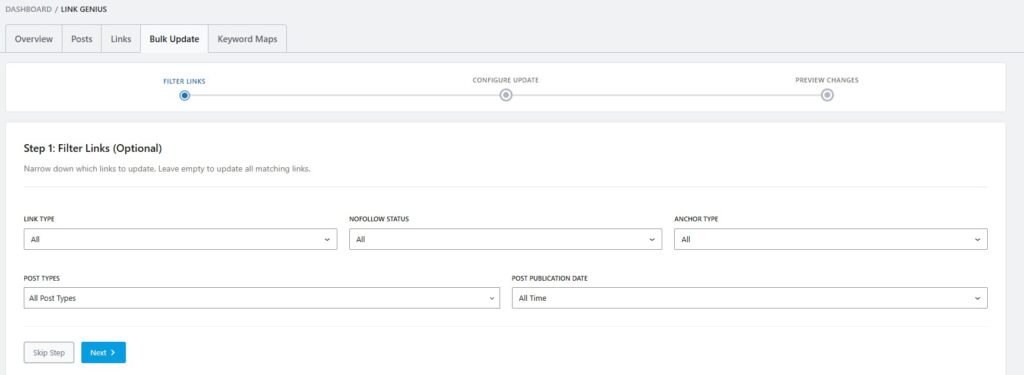
To go with the bulk update, you have to click on the Bulk update tab, then this page opens. Now you need to click on the Next button to go to the next step.
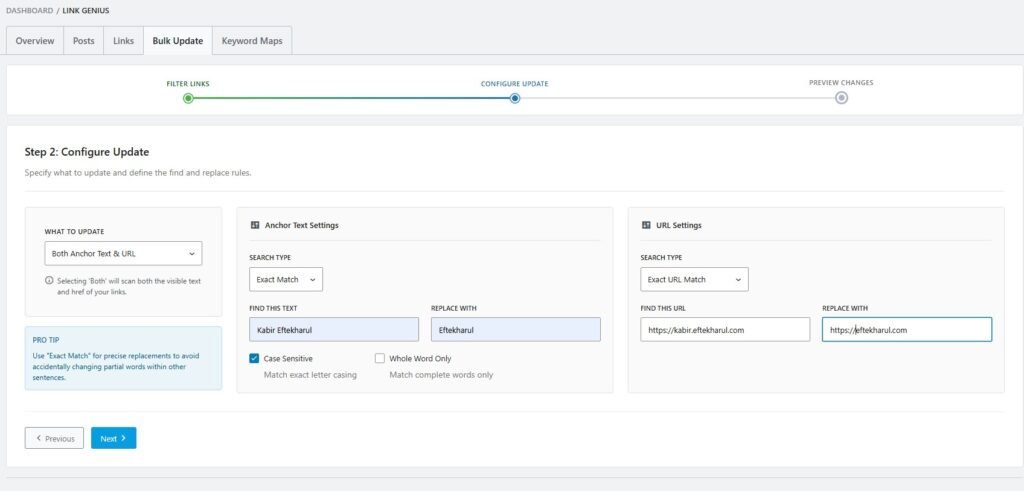
This page is where you configure what changes you want to apply. You can choose to update anchor text, URLs, or both, depending on your goal. This makes it easy to fix links, update branding, or change destinations in bulk.
In the Anchor Text Settings, you define the text to find and what to replace it with. You can also use options like exact match and case sensitivity for more accurate changes.
The URL Settings section lets you replace old URLs with new ones. This is useful for fixing broken links or updating links after a site change. Once everything is set, you can move to the next step to preview the changes.
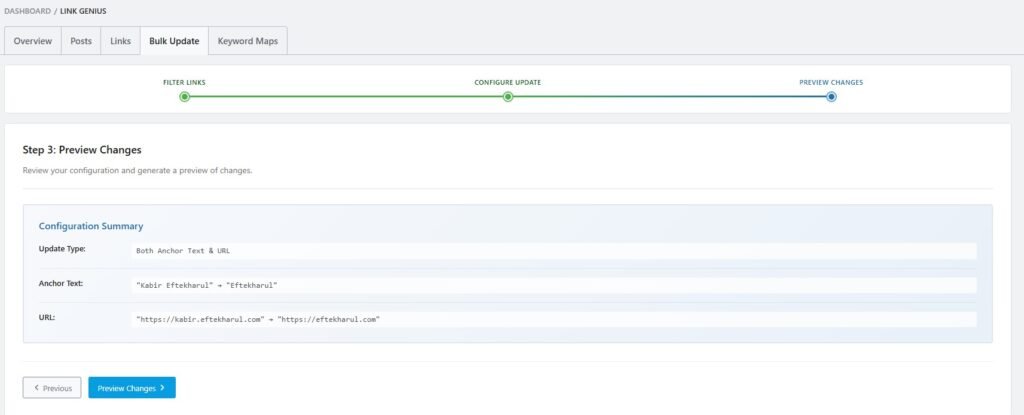
On this last step, you just need to click on the Preview Changes button to finish the process.
Plugin #2: Link Whisper
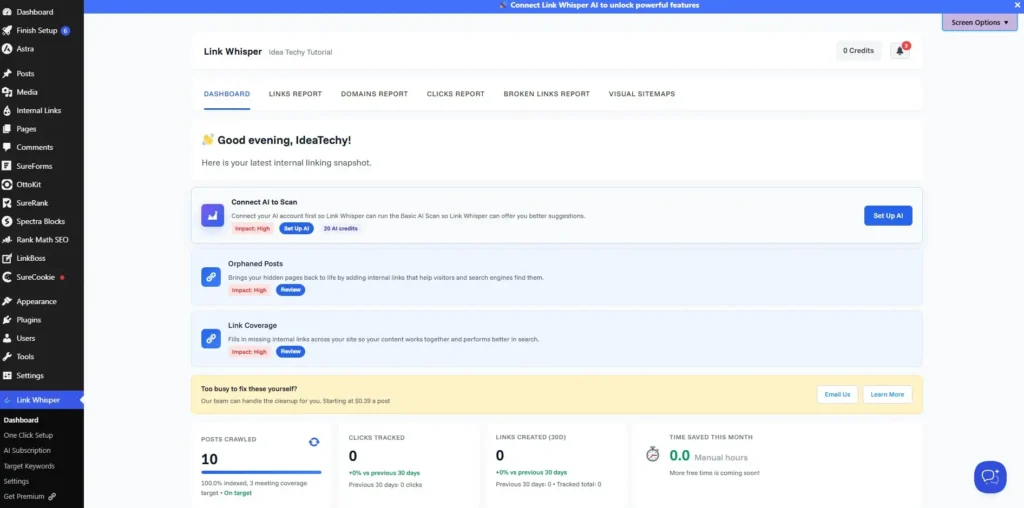
Link Whisper dashboard provides a quick overview of your website’s internal linking status. It highlights important areas, including orphaned posts and pages with missing internal links.
The dashboard also displays crawled posts, tracked clicks, created links, and estimated time saved. In my test, it showed 10 crawled posts, with zero tracked clicks or created links.
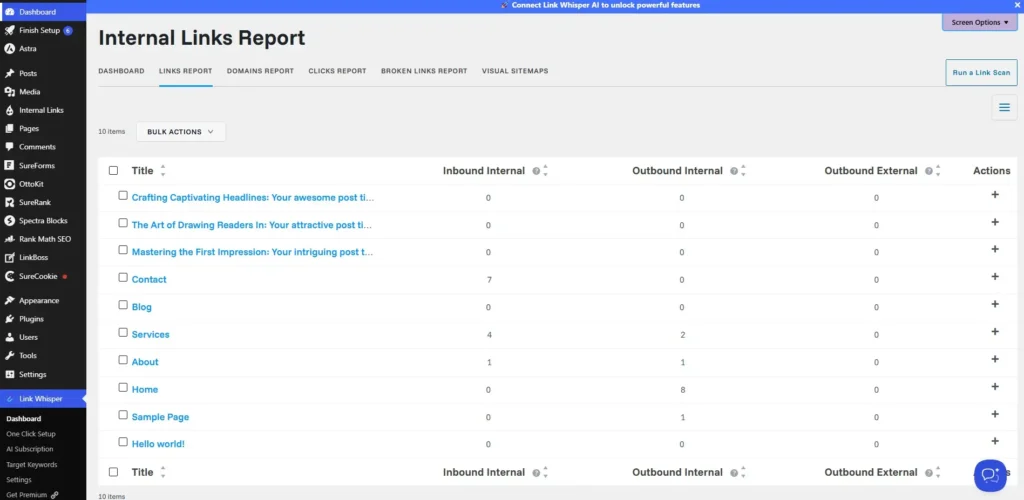
Internal Links Report displays each scanned page alongside its inbound and outbound link counts. It separates internal and external links, making page-level link analysis easier.
In my test, the report listed 10 website pages with their individual link statistics. For example, the Contact page had seven inbound internal links, while Home had eight outbound internal links.
Plugin #3: Internal Link Juicer
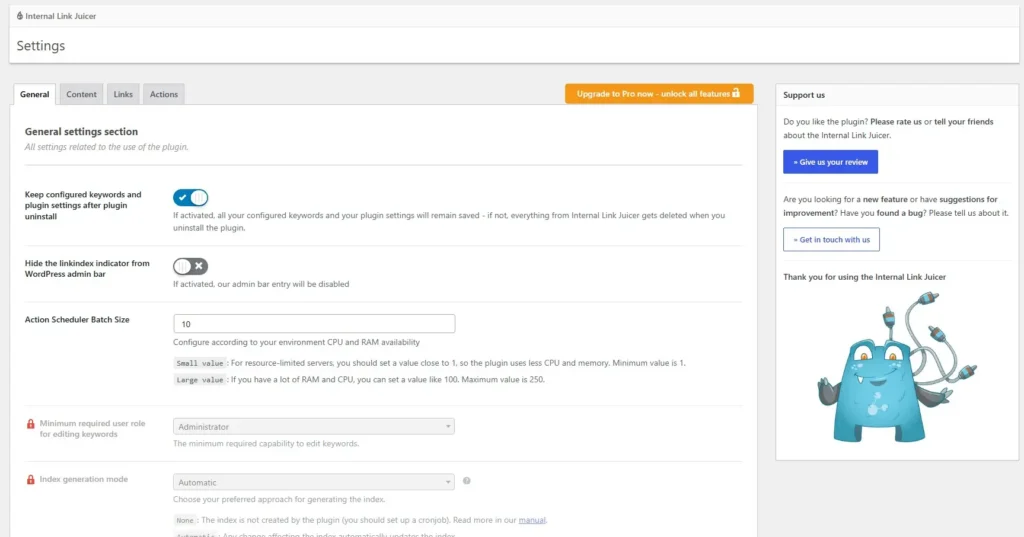
Internal Link Juicer focuses on automatically creating internal links using configured keywords across your WordPress website. It provides several settings that let you control how the plugin handles internal linking.
The plugin lets you add specific keywords that can trigger internal links within your content. This approach can reduce manual work when connecting related pages across larger websites.
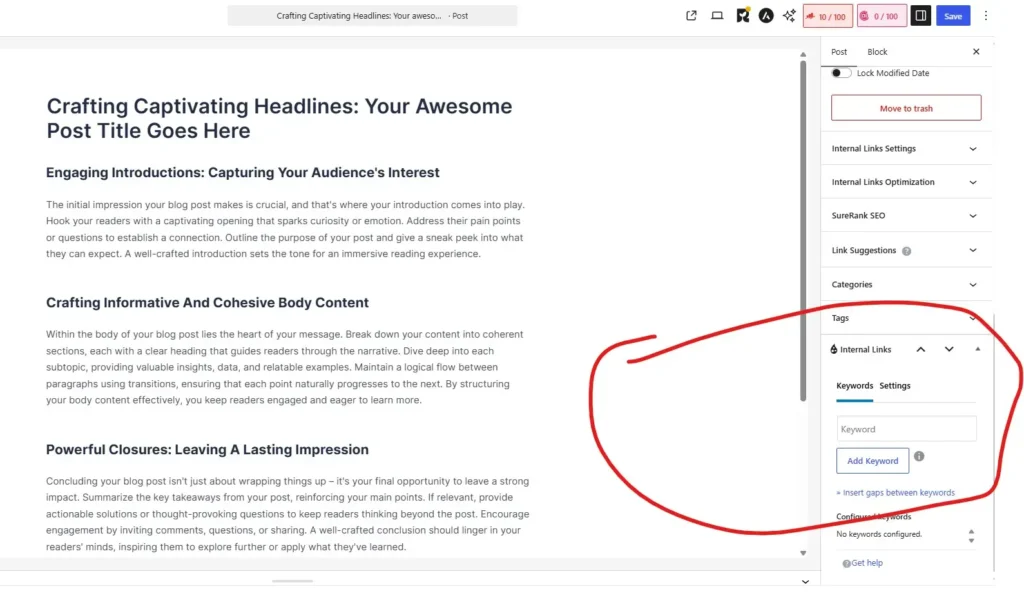
In the General settings, you can preserve configured keywords after uninstalling the plugin. You can also hide the link indexer from the WordPress admin bar and adjust batch size.
Some advanced settings appear locked behind the Pro upgrade option. Overall, Internal Link Juicer focuses on keyword-based automation rather than a visual link-suggestion workflow.
Plugin #4: Interlinks Manager
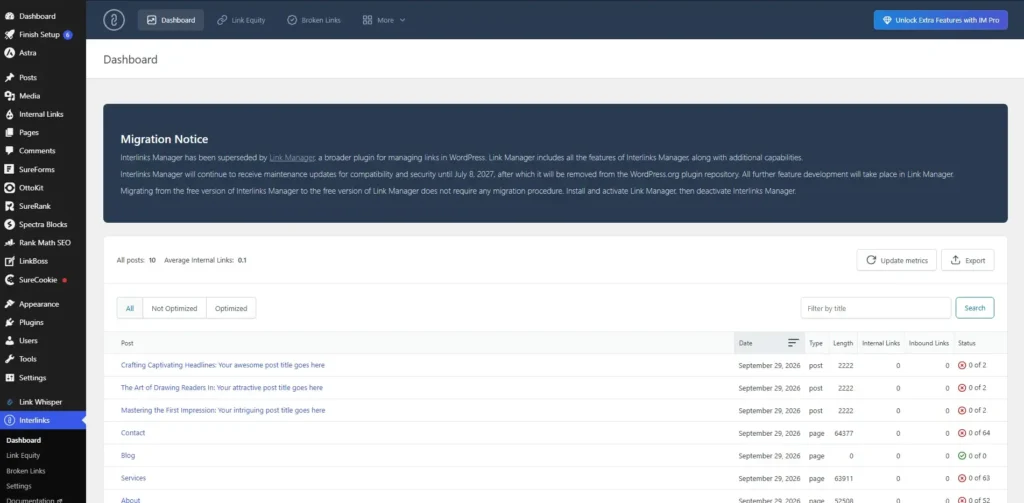
The dashboard summarizes internal linking data across the website’s posts and pages. It shows total posts, average internal links, and each page’s linking statistics.
You can filter pages by optimization status, search by title, and update metrics. A migration notice says Interlinks Manager is being superseded by Link Manager.
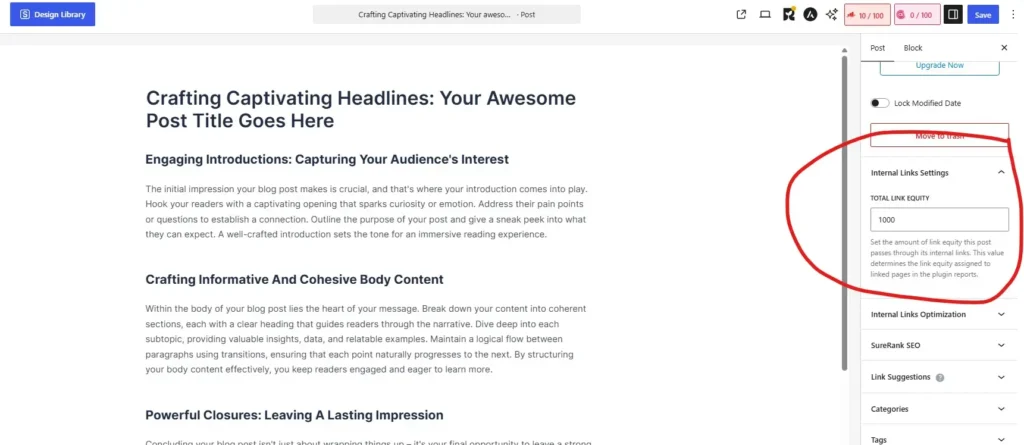
Inside the post editor, Interlinks Manager provides an Internal Links Settings panel. Its Total Link Equity field lets you assign a value to the post’s outgoing internal links.
The setting explains that this value represents link equity passed through internal links. Assigned values help determine link equity for linked pages in plugin reports.
Plugin #5: Linkilo
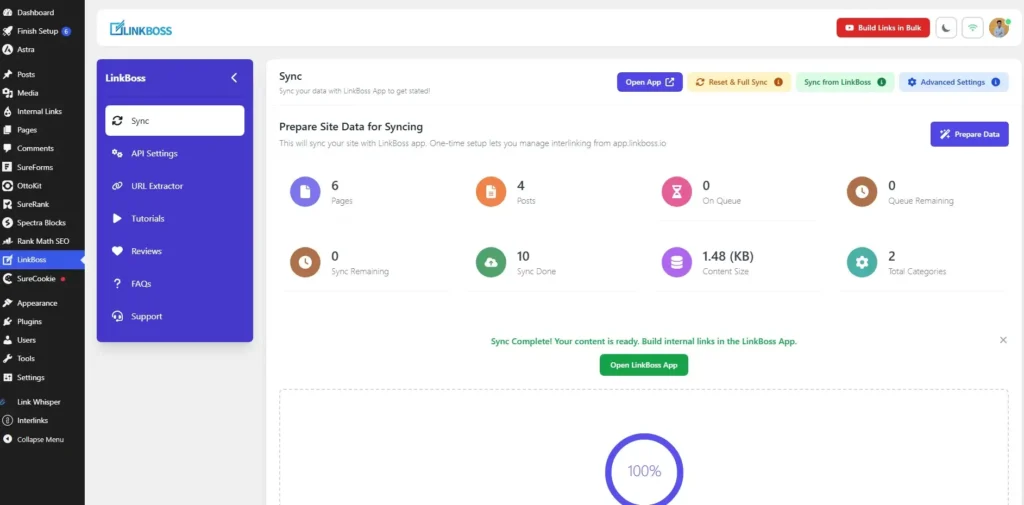
LinkBoss provides a dedicated Sync dashboard for preparing WordPress content for its external application. Users can open the app, reset synchronization, or access advanced settings.
The dashboard displays six pages and four posts available for synchronization. It also shows queued items, remaining sync tasks, completed syncs, and total categories.
Before building links, users can select Prepare Data to organize website content. The dashboard also displays the synchronized content size and current progress.
In my test, synchronization completed successfully, with ten items marked as synced. LinkBoss then prompted me to open its app and build internal links.
Head-to-Head Comparison: Which Plugin Performs Better?
Internal Link Suggestions
Internal link suggestions can save time by identifying relevant pages while creating or updating content. I compared how easily each plugin helps users discover suitable linking opportunities.
Some plugins provide suggestions inside the WordPress editor, while others use separate dashboards. This difference can affect how smoothly each tool fits into your writing workflow.
Automatic Internal Linking
Automatic internal linking helps connect relevant pages without manually adding every link. I examined how each plugin handles automation and gives users control over linked keywords.
Internal Link Juicer, for example, uses configured keywords to create links automatically. Other plugins may offer different approaches, so their control options deserve careful comparison.
Finding Link Opportunities
Finding relevant link opportunities helps strengthen connections between related pages across your website. I considered whether each plugin makes it easier to identify pages needing additional internal links.
Orphaned pages and posts with few incoming links deserve particular attention during this process. Tools that highlight these issues can help prioritize your internal linking improvements.
Ease of Use
An internal linking plugin should make everyday tasks manageable without creating unnecessary complexity. I considered the setup process, interface design, and accessibility of important features.
Some tools place their controls directly inside the WordPress editor, while others use separate dashboards. I also considered how easily beginners could understand each plugin’s workflow.
Frequently Asked Questions
An internal linking plugin helps connect related pages across your WordPress website. Depending on its features, it can suggest, automate, or analyze internal links.
I tested Rank Math AI Link Genius, Link Whisper, and Internal Link Juicer. I also tested Interlinks Manager and LinkBoss using my WordPress website.
Some plugins support automatic internal linking through configured keywords or other rules. Their automation methods and available controls vary between plugins.
Link Whisper provides internal link reports and highlights opportunities such as orphaned posts. Internal Link Juicer focuses on keyword-based automation through configured keywords.
Some plugins include tools for identifying pages without incoming internal links. Link Whisper’s dashboard, for example, includes an Orphaned Posts section.
Yes, Link Whisper provides an Internal Links Report with page-level link statistics. It displays inbound internal, outbound internal, and outbound external link counts.
Internal Link Juicer uses configured keywords to create internal links within WordPress content. Its editor panel lets users add keywords directly to individual posts.
No, plugins can support internal linking, but relevant links still require editorial judgment. Review suggested or automated links to ensure they make sense for readers.
Final Talk
Testing these five WordPress internal linking plugins showed how differently they approach link building. Each plugin offers useful features, but their workflows and capabilities vary.
Link Whisper provides detailed link reports and highlights orphaned posts for review. Internal Link Juicer focuses on keyword-based automation, while LinkBoss uses an external application.
Interlinks Manager offers link metrics, although its dashboard announces a transition to Link Manager. Rank Math AI Link Genius also brings AI-powered internal link management into the comparison.
Based on my testing, Rank Math AI Link Genius is my preferred option for WordPress Internal link building industry. Ultimately, choose a plugin that matches your workflow, budget, and internal linking requirements.