
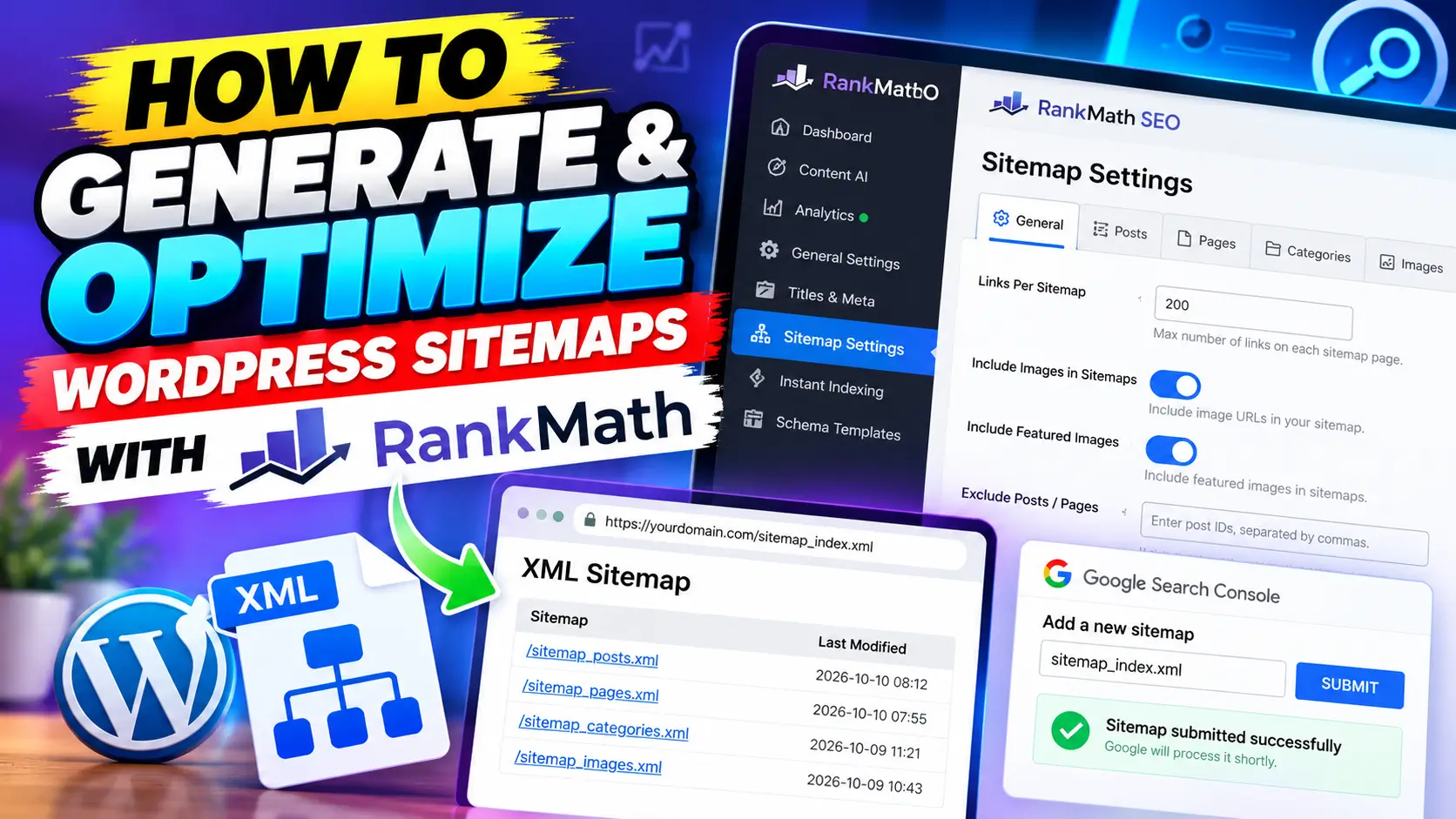
A sitemap helps search engines discover important URLs across your WordPress website more efficiently. However, generating one is only the first step; the configuration still matters.
Rank Math makes it easy to create XML sitemaps and control which content appears inside them.
In this guide, I’ll show you how to configure sitemap settings for your website.
You’ll also learn how to find your sitemap index and submit it to Google Search Console. Finally, we’ll explore common sitemap problems and practical ways to troubleshoot them.
What Is a WordPress Sitemap?
A WordPress sitemap is a file that lists important URLs available on your website. It helps search engines discover content without relying only on links between pages.
An XML sitemap is designed mainly for search engines, while an HTML sitemap helps visitors navigate. XML sitemaps can include details such as each URL’s last modification date.
A sitemap does not guarantee that Google will crawl, index, or rank every listed URL. It simply provides search engines with information about pages you want them to discover.
For WordPress websites, Rank Math can automatically generate an XML sitemap and organize URLs. You can then adjust which posts, pages, images, and other content types appear.
How to Enable Rank Math Sitemap Settings
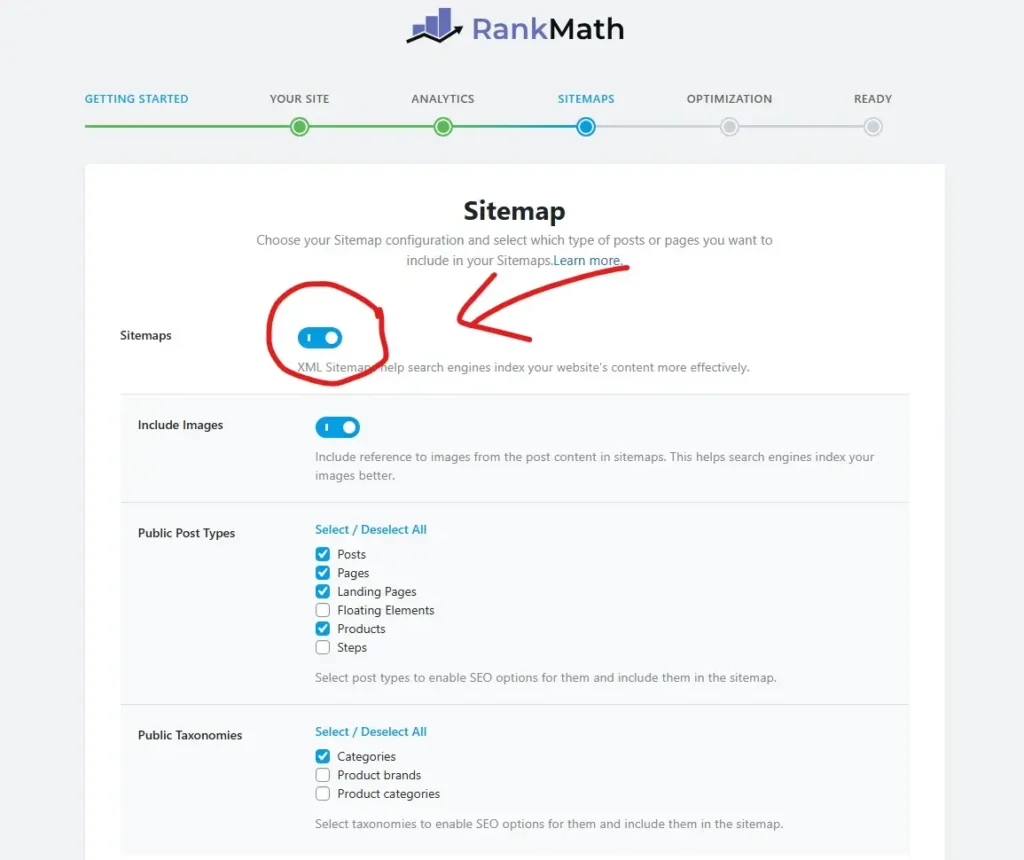
While the Rank Math SEO plugin setup process, on the sitemap page you’ll find a option to enable the sitemap feature. Simply toggle it on, then save your changes to generate an XML sitemap for your website.
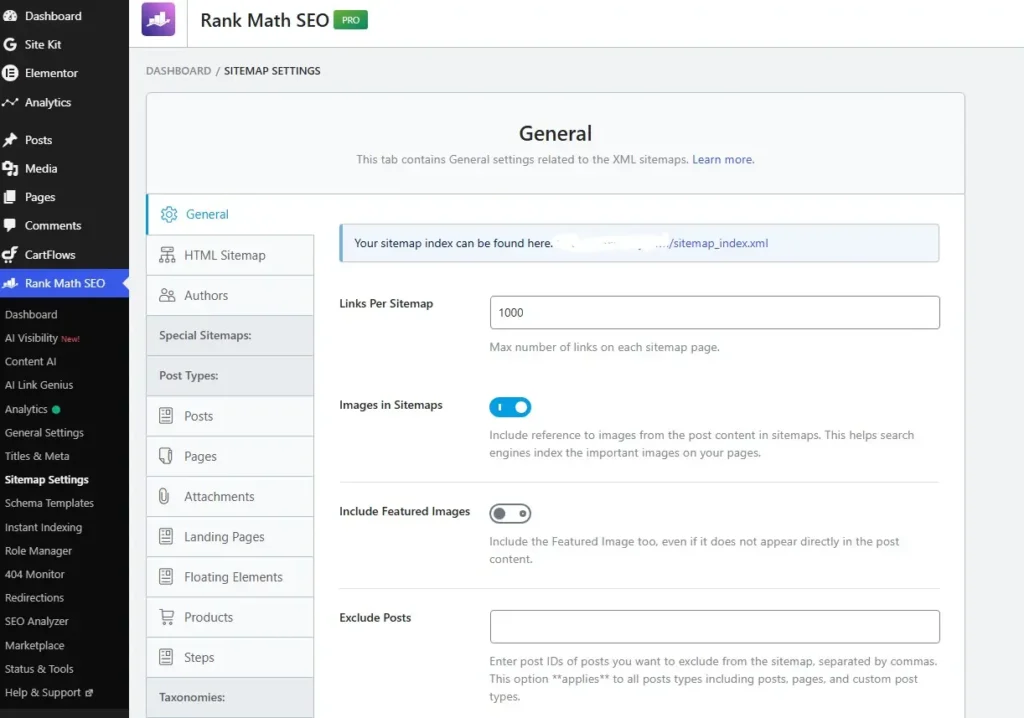
If you have already completed the setup wizard, go to Rank Math SEO → Sitemap Settings from your WordPress dashboard. Enable Sitemaps, review the available sitemap types, and click Save Changes to apply the settings.
How to Configure the General Sitemap Settings
Rank Math provides several settings to control how your WordPress sitemap is generated and organized. These options help you manage sitemap size, image inclusion, and which URLs search engines can discover.
Before customizing individual content types, start with the General Sitemap Settings tab. Here, you can configure sitemap links, include images, and exclude specific posts or taxonomy terms.
Links Per Sitemap

The Links Per Sitemap setting controls how many URLs Rank Math includes in each sitemap file. When your website has many URLs, Rank Math automatically divides them into smaller sitemap files.
Rank Math recommends 200 links per sitemap, which is also its current default setting. Smaller sitemap files can be easier to process and help search engines discover URLs efficiently.
You can find this option under Rank Math SEO → Sitemap Settings → General. Keep the recommended value unless your website has specific sitemap requirements.
Include Images in Sitemaps

The Include Images in Sitemaps option controls whether Rank Math adds image information to your XML sitemap. This helps search engines discover images associated with your website’s posts and pages.
Rank Math enables this option by default and recommends keeping it enabled. You can find it under Rank Math SEO → Sitemap Settings → General. Toggle it off only when you have specific reasons, such as managing an unusually large image library.
Exclude Specific Posts or Pages

Rank Math lets you exclude individual posts, pages, or custom post types from your XML sitemap. This can be useful for removing URLs that you don’t want search engines to discover through your sitemap.
To exclude specific content, navigate to Rank Math SEO → Sitemap Settings → General. Find the Exclude Posts field and enter the relevant WordPress post IDs, separating multiple IDs with commas.
To find a post or page ID, open it in the WordPress editor and check the browser’s URL. In a URL like post.php?post=123&action=edit, the ID is 123. Add that number to the exclusion field, then click Save Changes.
Use this setting carefully and exclude only content that should not appear in your sitemap. If a page should not be indexed at all, review its indexing and canonical settings as well; sitemap exclusion alone does not prevent indexing.
Choose Which Content Types Appear in Your Sitemap
Rank Math lets you control which WordPress content types appear in your XML sitemap. This helps search engines discover important posts, pages, and other relevant website content.
Depending on your website, you can configure sitemaps for posts, pages, categories, tags, media, and custom post types. WooCommerce users can also include product pages and product categories, keeping their store content discoverable.
Posts and Pages
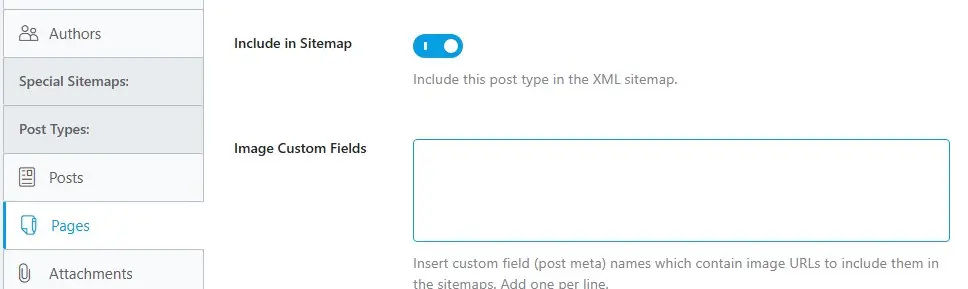
Rank Math lets you choose whether WordPress posts and pages appear in your XML sitemap. You can manage these options under Rank Math SEO → Sitemap Settings → Posts and Pages.
Keep Include in Sitemap enabled for important, indexable content you want search engines to discover. Exclude content only when it should not appear in search results, such as private pages or unnecessary utility content.
Categories and Tags
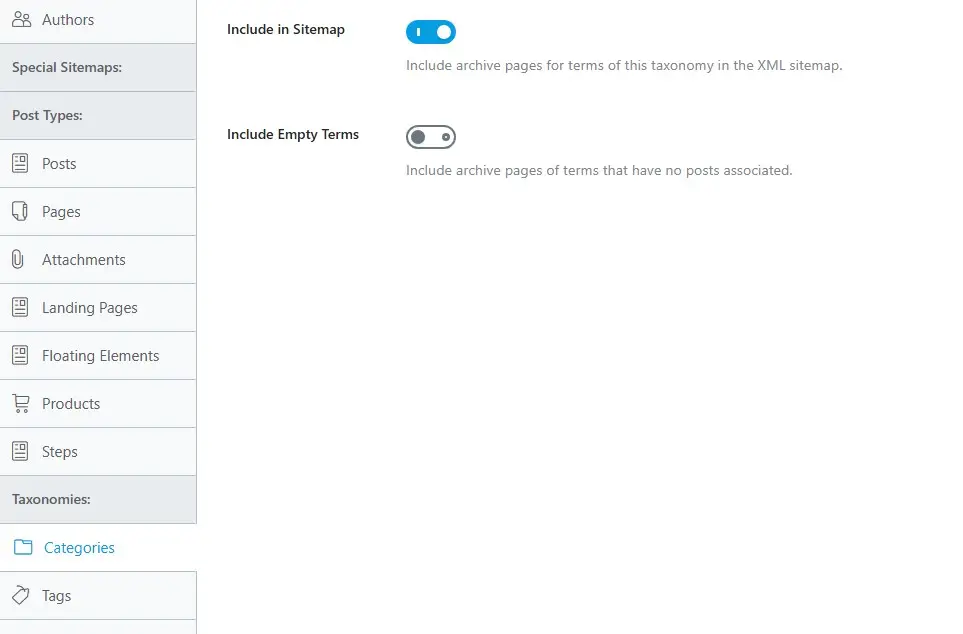
Rank Math lets you include category and tag archive pages in your XML sitemap. These settings help search engines discover taxonomy pages that organize related content on your website.
Keep Include in Sitemap enabled for useful archive pages with relevant content. The Include Empty Terms option is disabled by default, preventing categories or tags without associated posts from appearing in the sitemap.
For better sitemap quality, avoid including empty or thin archive pages that provide little value to visitors. Review your categories and tags, and include only those that support your website’s content structure.
Media and Attachment Pages
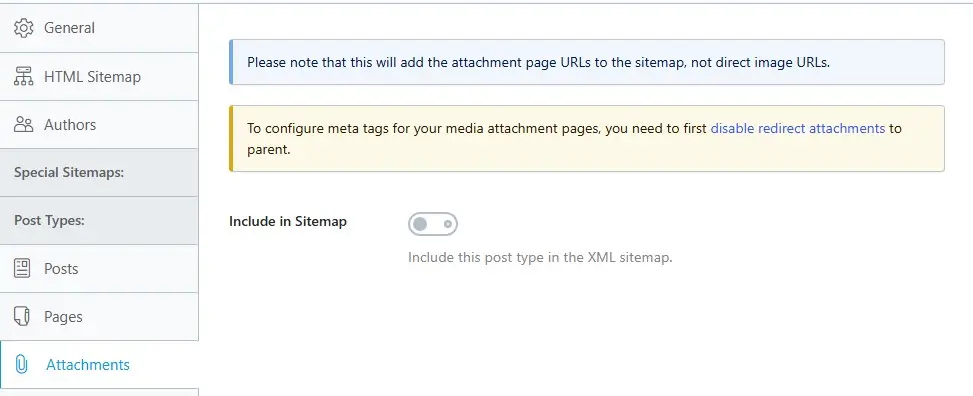
Rank Math includes a separate sitemap setting for media attachment pages. When enabled, it adds attachment page URLs to your sitemap—not the direct image URLs themselves.
For most websites, keeping Include in Sitemap disabled is a sensible choice because attachment pages often provide little standalone value. Rank Math also notes that configuring meta tags for attachment pages requires disabling the redirect to the parent page first.
If your website uses attachment pages intentionally, review their content and indexing settings before including them in your sitemap.
WooCommerce Products and Product Categories
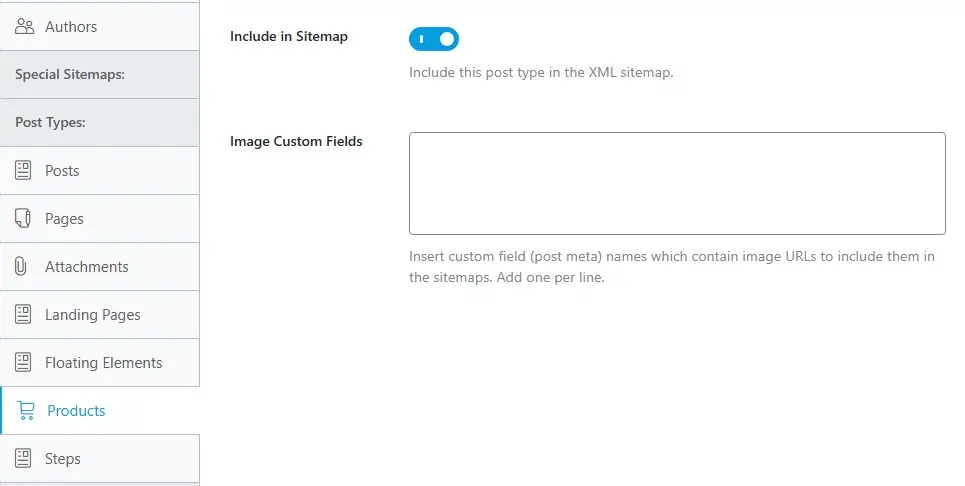
If your WordPress website uses WooCommerce, Rank Math lets you include product pages in your XML sitemap. This helps search engines discover products you want to appear in search results.
Keep Include in Sitemap enabled for important products, and review the Image Custom Fields option if product images are stored in custom fields. Enter the relevant custom field names, one per line, so Rank Math can include those image URLs in the sitemap.
You should also review product category settings under Rank Math SEO → Sitemap Settings → Product Categories. Include useful category archives that organize products and help shoppers discover relevant items.
Configure an HTML Sitemap for Visitors
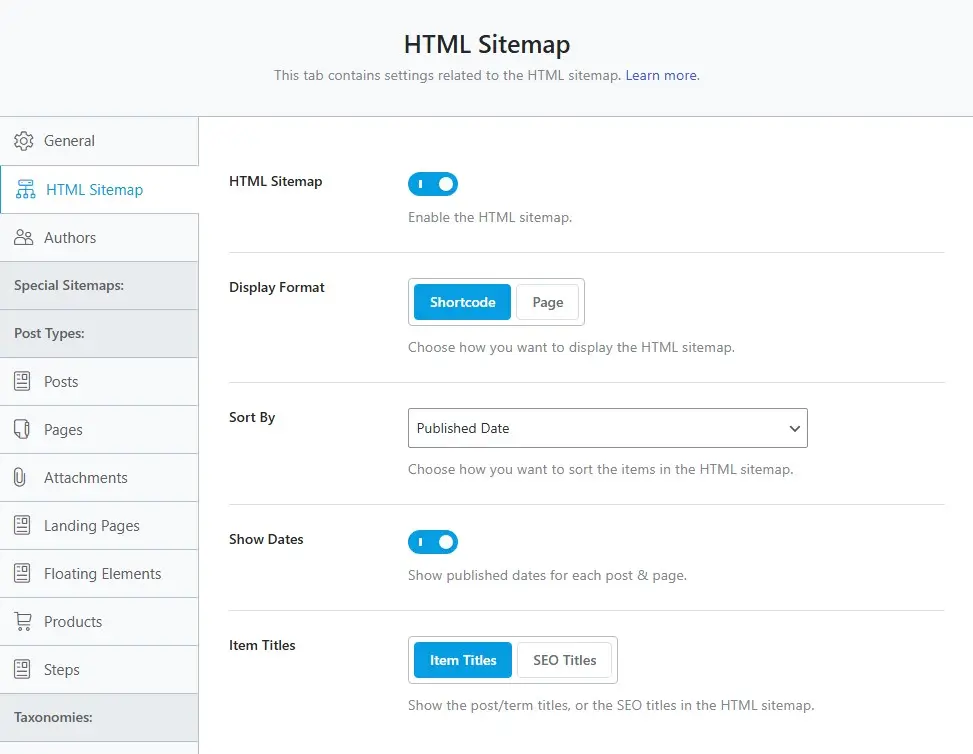
Rank Math also lets you create an HTML sitemap to help visitors navigate your website. Unlike XML sitemaps, HTML sitemaps are designed for people browsing your content.
To enable this feature, go to Rank Math SEO → Sitemap Settings → HTML Sitemap and turn on the HTML Sitemap option. You can display it using a shortcode or a dedicated page, depending on your preference.
The Sort By setting controls how sitemap items are organized, such as by published date. You can also choose whether to show publication dates and display regular item titles or SEO titles.
After configuring these options, save your changes and add the HTML sitemap to a suitable page on your website. This gives visitors a simple overview of your published content and helps them find relevant pages.
How to Submit Your Sitemap to Google Search Console
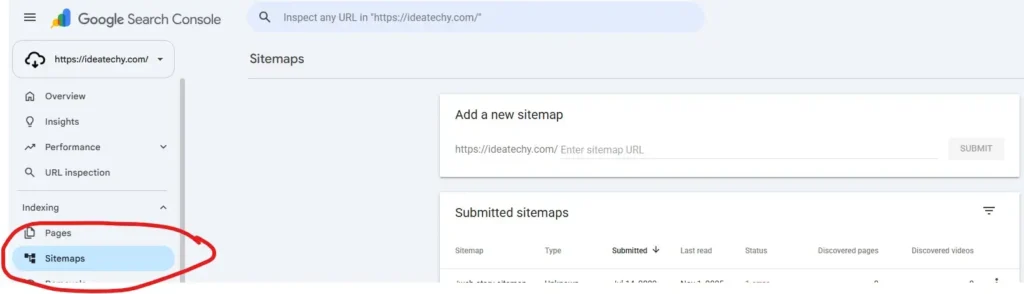
After configuring your sitemap in Rank Math, submit it to Google Search Console. This helps Google discover your sitemap and process the URLs listed inside.
First, open Google Search Console and select your verified website property. From the left sidebar, navigate to Indexing → Sitemaps.
Under Add a new sitemap, enter sitemap_index.xml in the input field. Rank Math uses this sitemap index to organize individual sitemap files for your website.
Click Submit to send your sitemap to Google. Check the Submitted sitemaps section to review its status and discovered URLs.
If Google reports an error, verify that your sitemap URL opens correctly in a browser. Remember, submitting a sitemap helps Google discover URLs but does not guarantee their indexing.
FAQ About Sitemaps
Yes, Rank Math automatically generates an XML sitemap when its Sitemap feature is enabled. You can customize which content types appear through Sitemap Settings.
The default sitemap index URL is usually https://yourdomain.com/sitemap_index.xml. Replace yourdomain.com with your website’s domain.
No, submitting the sitemap index is generally enough. It contains links to the individual sitemap files generated by Rank Math.
No, sitemap submission does not guarantee crawling or indexing. It helps Google discover URLs, but indexing depends on other factors.
Include category and tag archives when they provide useful content and navigation. Avoid including empty or low-value archive pages.
A sitemap 404 error may occur because of configuration or permalink issues. Check your Sitemap Settings, save your permalink settings, and test the sitemap URL again.
Caching may prevent you from seeing the latest sitemap output. Clear your website cache and check whether the new URL appears in the sitemap.
Yes, Rank Math includes an HTML Sitemap feature. You can enable it and display the sitemap using a shortcode or a dedicated page.
No, Rank Math’s standard XML sitemap functionality is available in the free plugin. Some specialized sitemap features, such as News and Video sitemaps, require PRO.
Conclusion
Generating and optimizing a WordPress sitemap with Rank Math helps search engines discover your website’s important content. By configuring sitemap settings, you can control which posts, pages, images, and archive URLs appear.
After customizing your sitemap, check the sitemap index and submit it to Google Search Console. Review any errors and keep your sitemap aligned with your website’s content structure.
Remember, a sitemap supports content discovery but does not guarantee indexing or higher rankings. Focus on including useful, indexable URLs and maintaining a clear website structure for both visitors and search engines.