
When I first started using Rank Math SEO, I only focused on the basic features like SEO titles, meta descriptions, and focus keywords. I thought that was all I needed to optimize my website and improve my rankings.
As time went on, I began exploring more of Rank Math’s settings and discovered that many powerful features were hidden in plain sight. Surprisingly, some of these tools were disabled by default, while others were buried deep inside the dashboard where most users never look.
After enabling and using these features on my own websites, I noticed improvements in my workflow, website structure, indexing, and even my search engine rankings. Features like AI Link Genius, Content AI, 404 Monitor, Instant Indexing, and several others helped me solve SEO problems that I didn’t even know existed.
In this article, I’ll share the 10 hidden Rank Math SEO features that had the biggest impact on my websites. If you’re only using Rank Math for titles and meta descriptions, you might be missing some of the most valuable tools the plugin has to offer.
#1: AI Link Genius
When I first heard about AI Link Genius, I thought it was just another internal linking tool. But after using it on my own website, I quickly realized it was one of the most useful SEO features Rank Math has ever released.
Before AI Link Genius, I had to manually search through old articles and add internal links one by one. Now, Rank Math automatically finds linking opportunities, highlights broken links, and helps improve my website structure in just a few clicks.
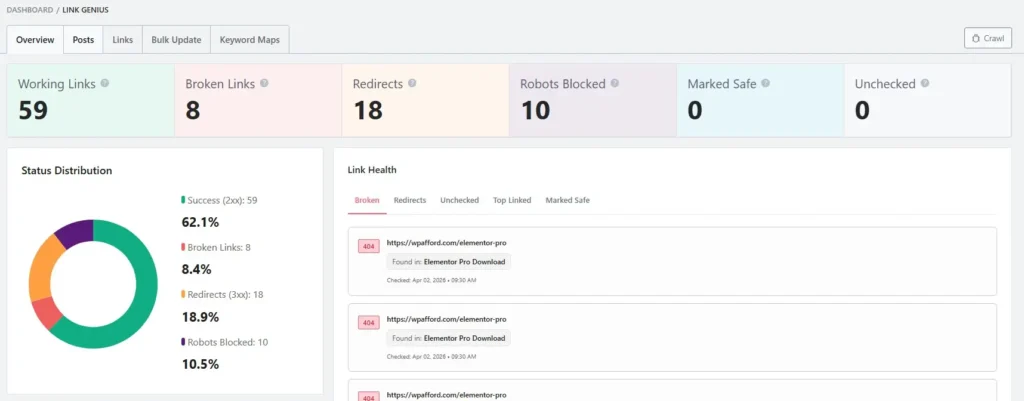
Rank Math AI Link Genius is one of the greatest inventions in 2026. Its help a WordPress SEO guy fix all of their SEO mistake within a few simple clicks.
On this dashboard, you’ll get some of the data about your working links, broken links, Redirects, Robots Blocked, Marked Safe, and unchecked.
Lets talk about some of the best features of Rank Math AI Link Genius.
How to Scan Your Website with Link Genius
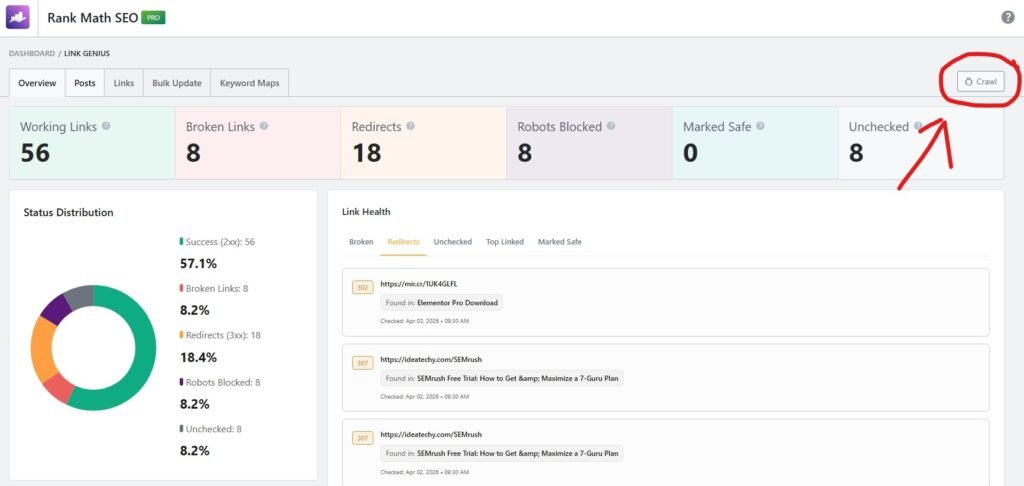
To scan your whole website using the Rank Math AI Link Genius, you have to go to the Rank Math Link Genius settings page.
Once you come to this page, you have to click on the “Crawl” button to go to the next step.
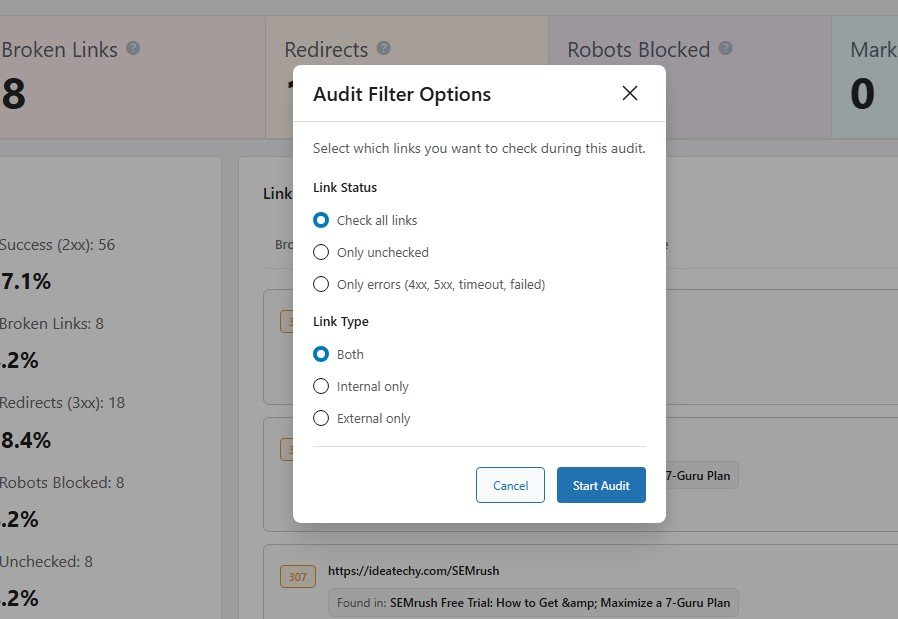
Then this pop-up will appear on your screen. Now you have to choose “Check all links” from Link Status, then choose “Both” from Link type, and click on the Start Audit button.
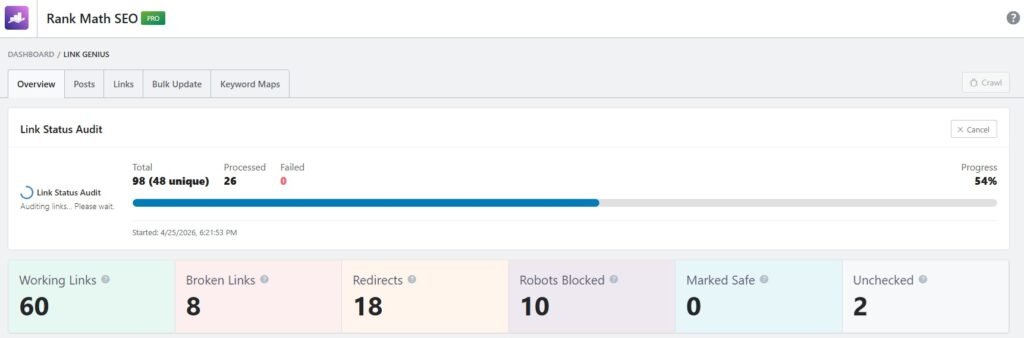
Then the crawl process will start, and you have to wait for a few seconds or minutes based on your website’s size.
Find Orphan Pages & Fix It
Orphan pages are posts or pages on your website that have no internal links pointing to them. This means neither users nor search engines can easily find them through your site structure.
Even if the content is valuable, orphan pages often don’t get indexed or ranked properly. Without internal links, they miss out on link authority and visibility, which can hurt your overall SEO performance.
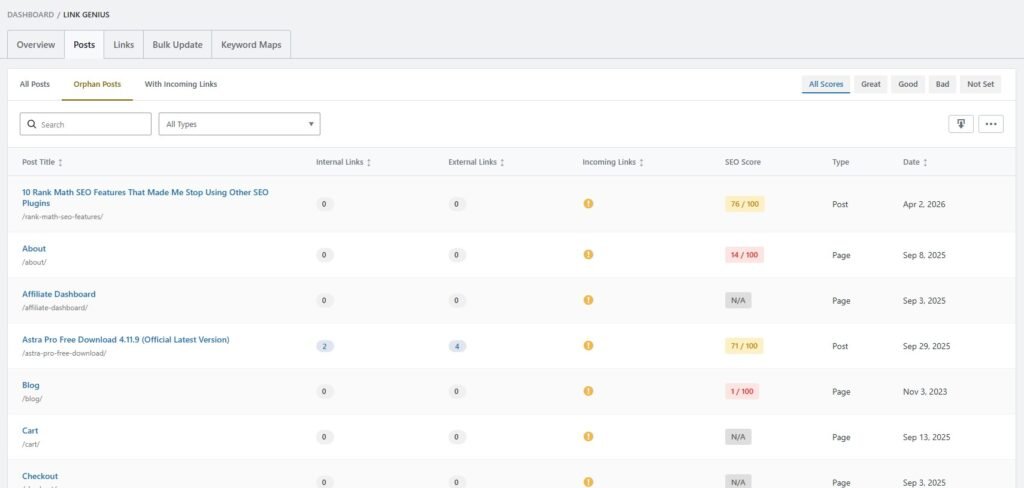
To orphan a post with the help of RankMath AI Link Genius features, you have to go to the Link Genius page, then Post, then click on orphan post.
On this page, you’ll find all the page posts with no incoming links.
To add a link to those orphan posts, you have to go with the manual method, or go with the keyword maps features.
Auto Internal Linking Using Keyword Maps
Keyword Maps in Rank Math help you automate internal linking based on specific keywords. Instead of adding links manually, you can assign a keyword to a target URL, and the tool will automatically create links across your content.
This makes internal linking faster and more consistent. It also ensures your important pages get linked properly without missing opportunities.
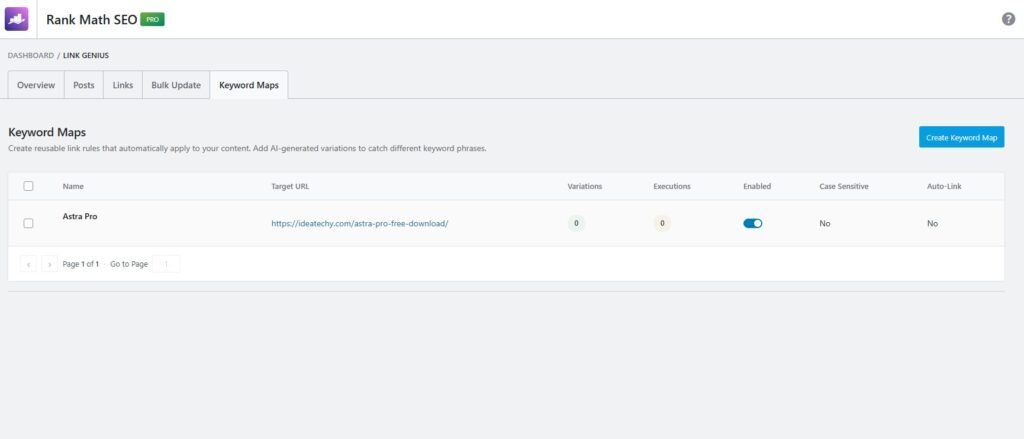
To create backlinks automatically, you have to go with these features.
At first, you have to click on the Create Keyword Map button to start this process.
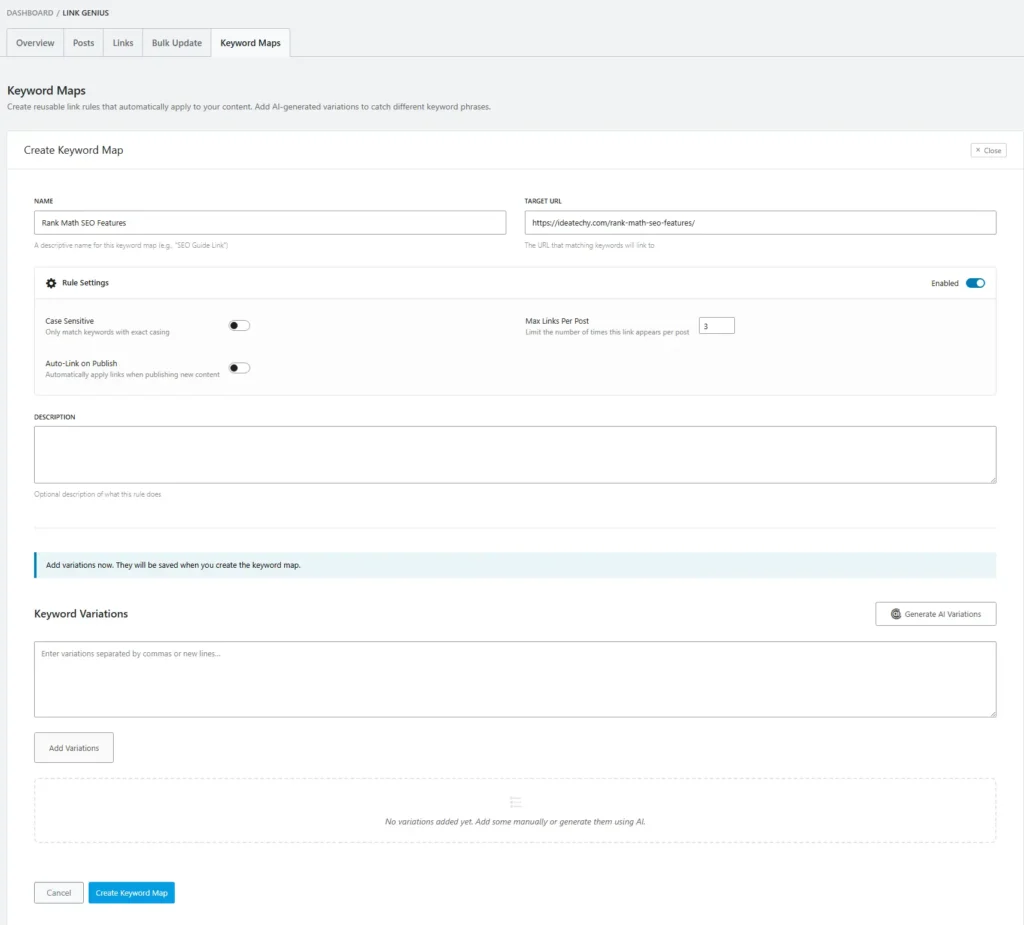
After coming to this Create Keyword Maps first step, you have to click on Name, and type your project name. Then, in the Target URL box, you have to type your URL.
Then you have to scroll down and click on the Create Keyword Maps to go to the second step.
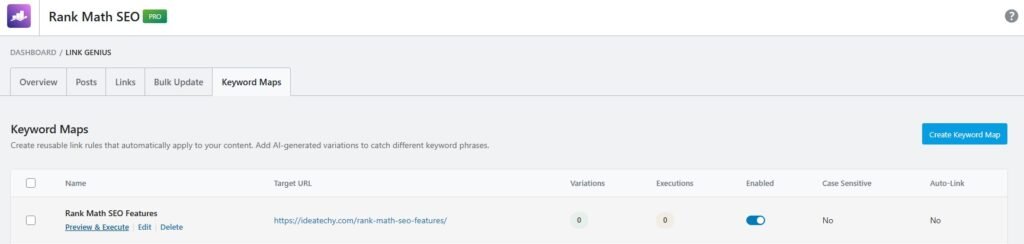
Then you have to click on the Preview & Execute text to start keyword maping.
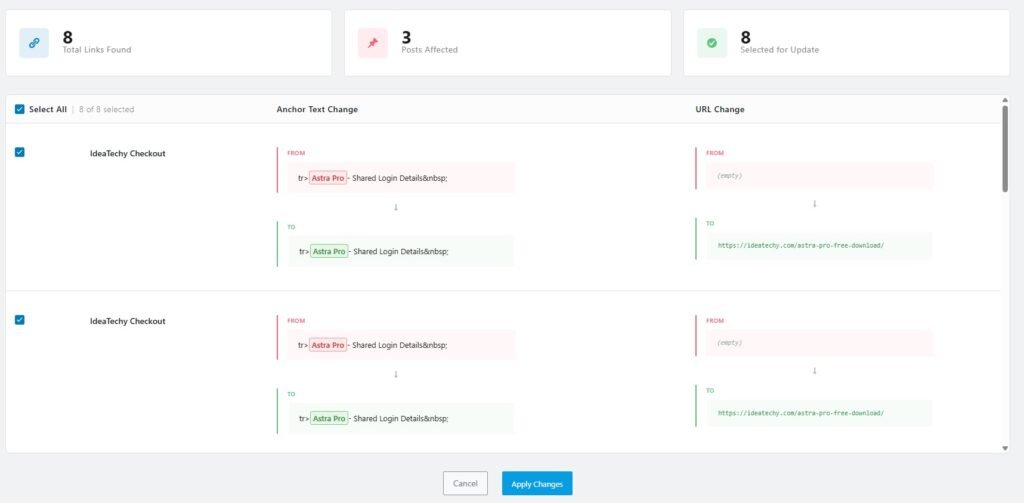
When you click on the text, this page will open. Now you’ll see a lot of backlink opportunities.
To do it, you just have to click on the Apply changes button.
#2: Content AI
When I first started writing, I often didn’t know what to include or how to structure my content. Rank Math Content AI made this much easier.
It suggests keywords, headings, and content ideas based on real data, so I don’t have to guess anymore. This helps me write faster and create SEO-friendly articles without overthinking.
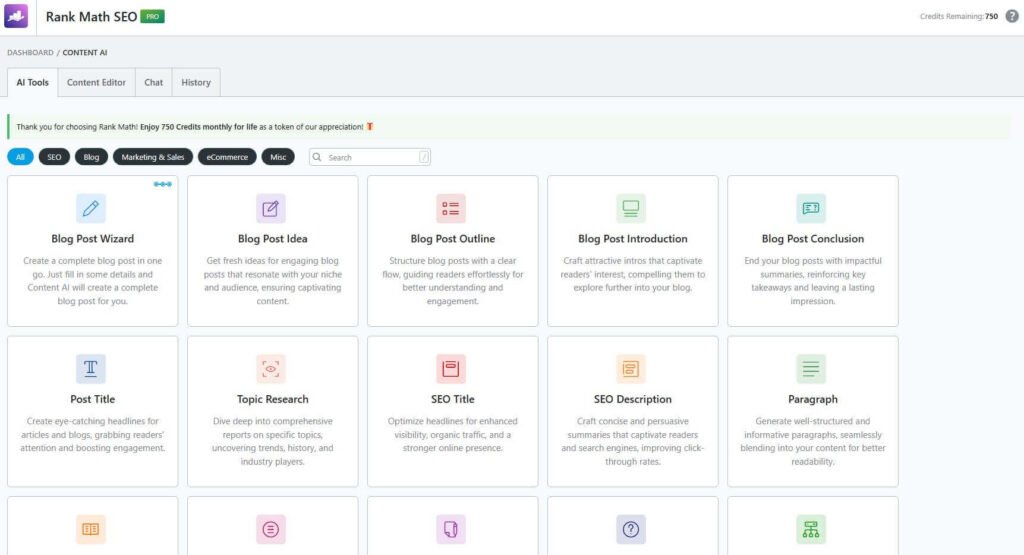
Rank Math Content AI comes with useful tools like blog ideas, outlines, introductions, and paragraphs. I mostly use it to quickly plan my content and avoid wasting time thinking what to write next.
It also helps with SEO titles, descriptions, and topic research. So instead of using different tools, I can do everything in one place and write faster.
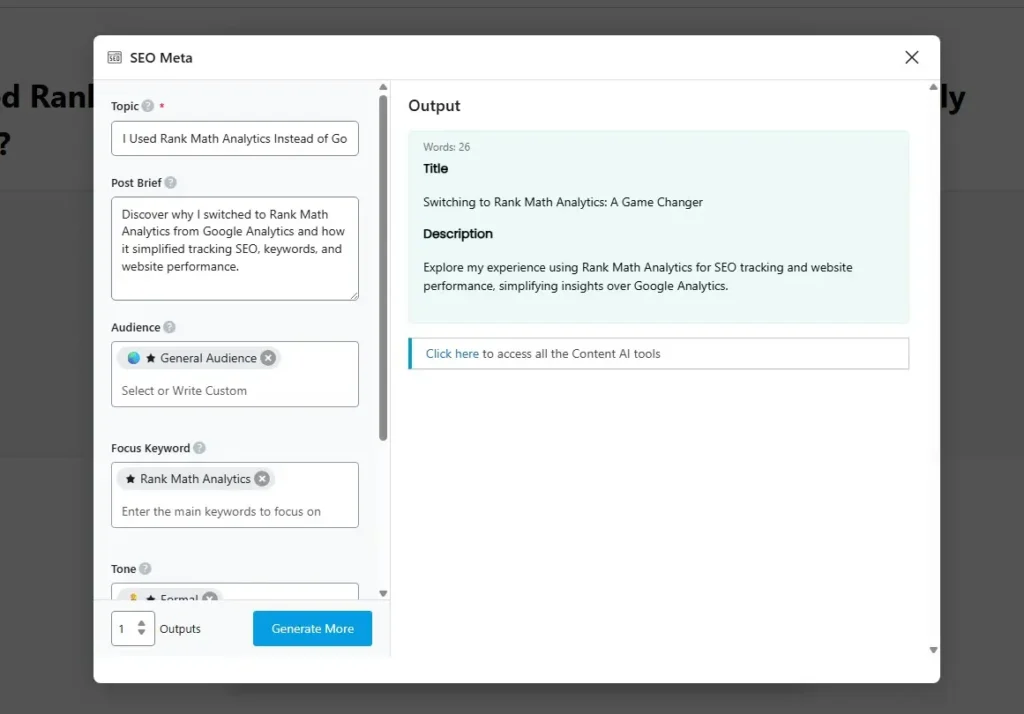
I usually start by adding my focus keyword and topic inside Content AI. It gives me keyword, heading, and word count suggestions, so I know exactly what to include.
Then I use SEO Title, Description, and suggested questions to improve my content. This makes my article more complete and easier to rank.
#3: 404 Monitor
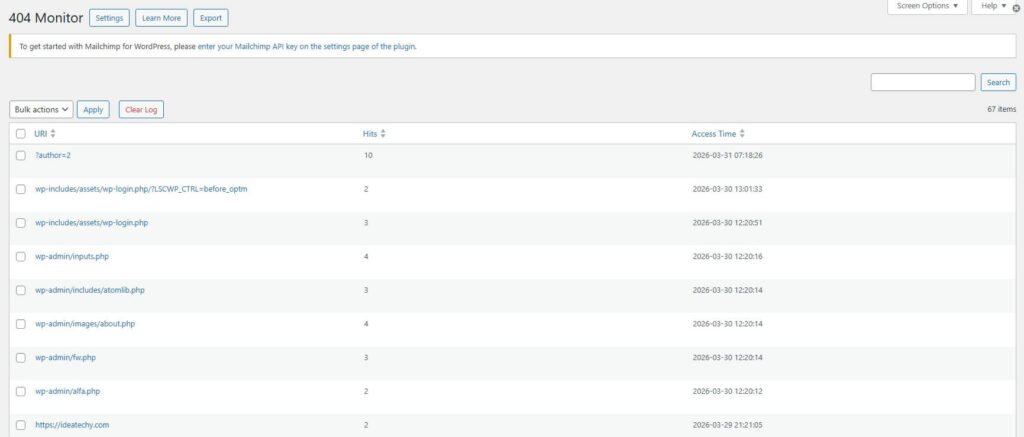
When I first saw the 404 Monitor in Rank Math, I realized how many broken URLs my site had. It shows all the pages visitors tried to access but couldn’t find, along with hits and time.
A 404 error means a page does not exist or the URL is broken. This can hurt user experience and also affect SEO if not fixed.
I use this feature to quickly find broken links on my site. Instead of guessing, I can see exactly which URLs are causing problems.
To fix it, I simply redirect those URLs using Rank Math’s redirect feature. This helps me recover lost traffic and keep my site clean.
#4: Redirection
One hidden feature that has saved me a lot of SEO headaches is Redirection. Whenever I delete a page, change a URL, or move content to a new location, I use Rank Math’s Redirection Manager to ensure visitors and search engines are sent to the correct page.
Before using this feature, I often ended up with broken URLs and 404 errors that hurt user experience and wasted link equity. With Rank Math, creating redirects takes only a few seconds, and it helps preserve rankings while keeping my website healthy.
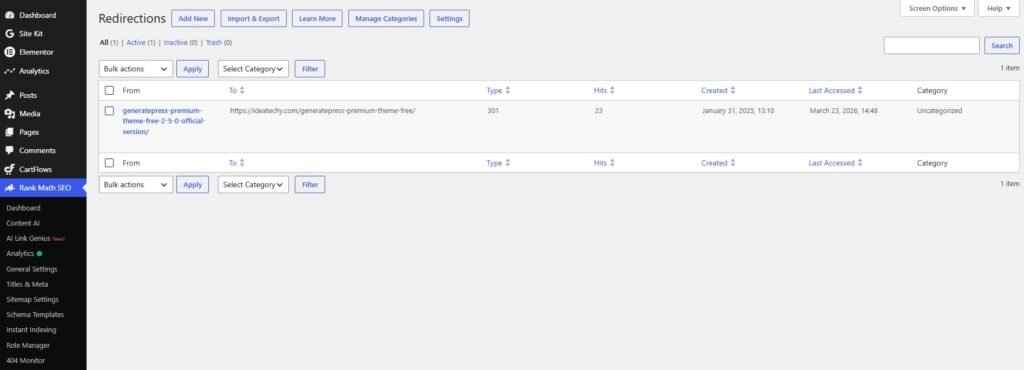
To Set up a new redirection, you’ve to click on the Add New button to setup a new redirections.
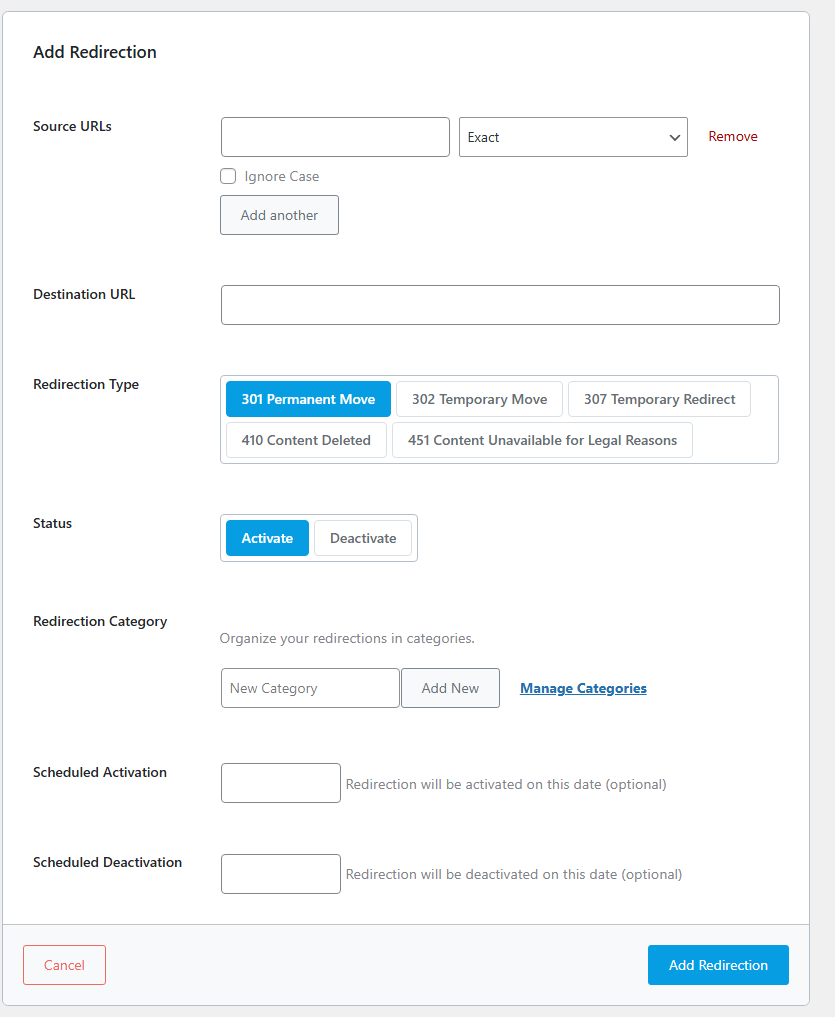
Step 1: Add Source URL
Enter the old or broken URL in the Source URLs field. This is the page you want to redirect.
Step 2: Select Match Type
Keep it on Exact if you want to redirect a specific URL. This works fine in most cases.
Step 3: Add Destination URL
Paste the new or correct page link in the Destination URL field.
Step 4: Choose Redirection Type
Select 301 Permanent Move if the page is permanently moved. This is what I use most of the time.
Step 5: Activate Redirect
Make sure the status is set to Activate so the redirect starts working immediately.
Step 6: (Optional Settings)
You can add categories or schedule the redirect, but I usually skip this unless needed.
Step 7: Click Add Redirection
Finally, click the button, and your redirect will be live.
This is how I fix broken links and move pages without losing traffic.
#5: Instant Indexing
Another hidden feature that I found extremely useful is Instant Indexing. Whenever I publish a new article or update an existing one, I can submit the URL directly to search engines without waiting for them to discover the changes naturally.
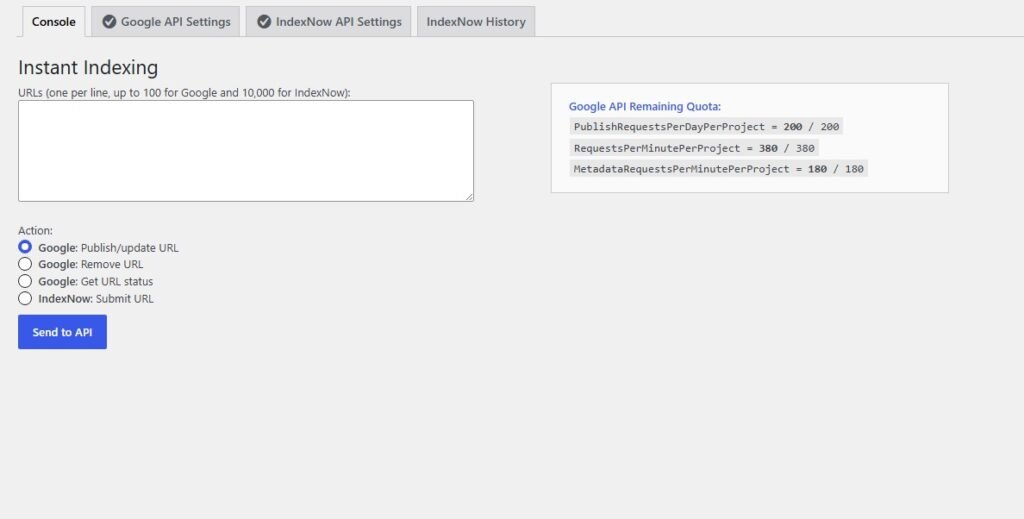
As shown in the screenshot, Rank Math’s Instant Indexing tool allows me to quickly submit URLs through the API and even check indexing status. This has helped me get important content crawled faster, especially when publishing time-sensitive articles or making major updates to existing posts.
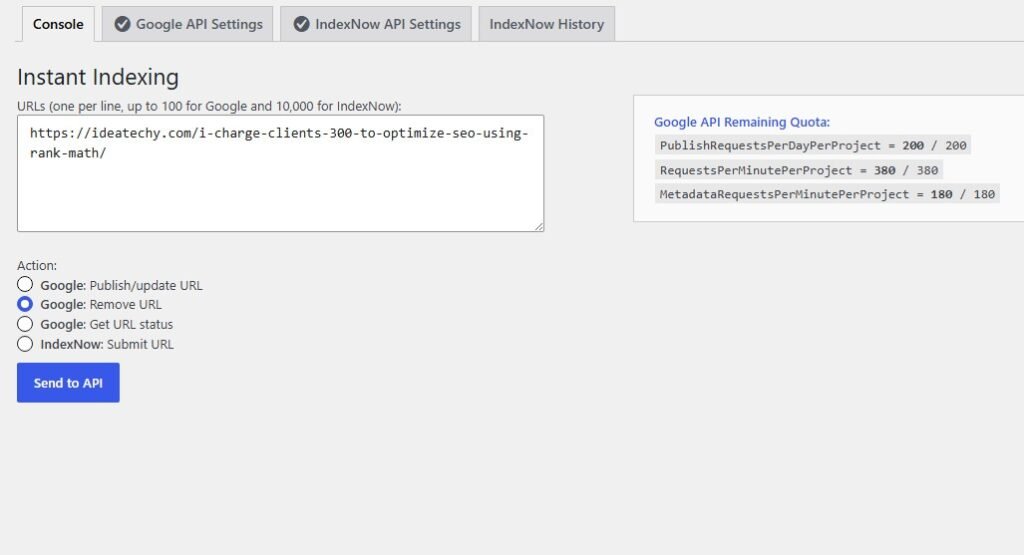
Let’s think: if you want to remove one of your website URLs super fast, then you just have to copy the URL, go to Rank Math Instant Indexing, submit the URL, select Remove URL, and lastly click on the Send to API button to remove your website URL hassle-free.
#6: Schema Generator
Schema generator, help me add structured data to my posts without coding.
I can quickly apply things like article, FAQ, or review schema using pre-made templates, which makes my content more visible in search results.
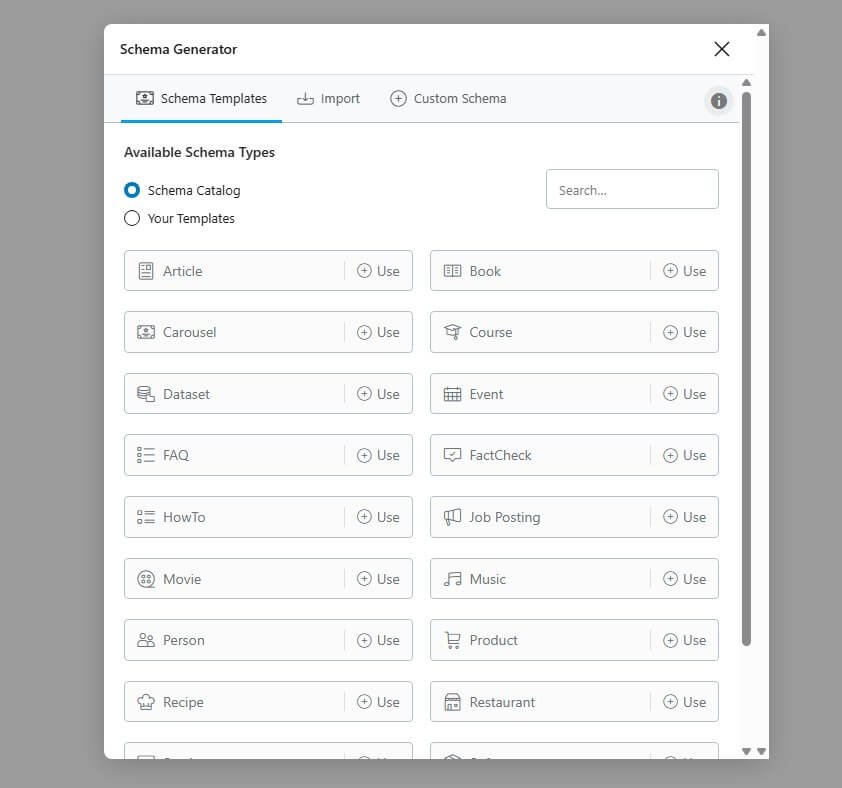
When I first used the Rank Math Schema Generator, I realized how easy schema markup can be. Instead of using code, I can choose from ready-made schema types like article, FAQ, product, and more.
Everything is already organized, so I just pick the type I need and apply it. This helped me add rich snippets to my content without any technical knowledge.
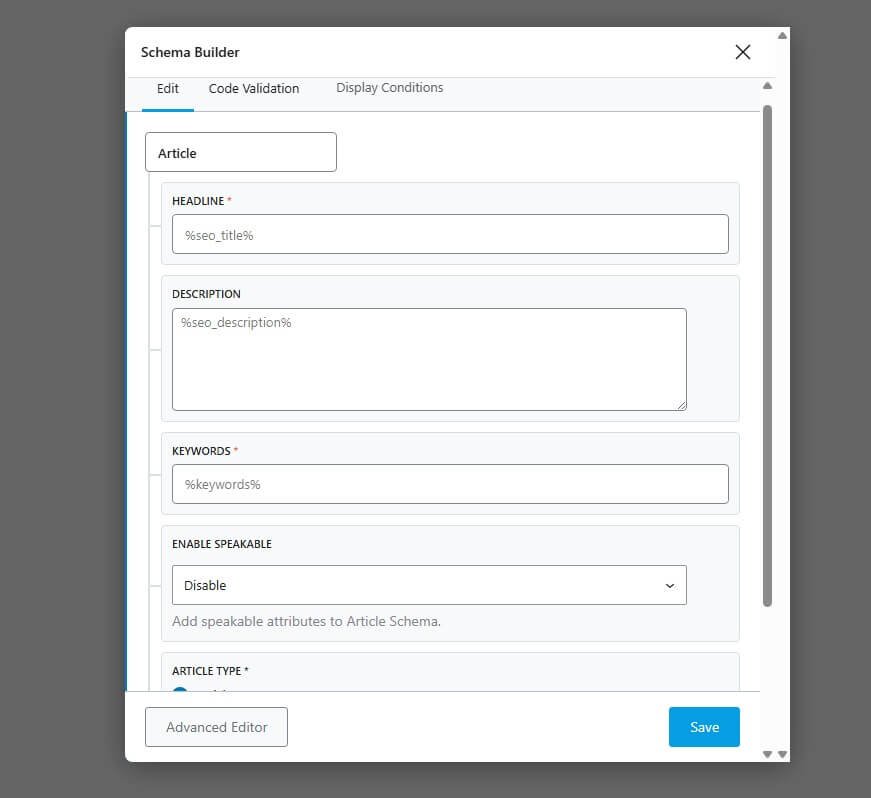
Creating an article schema in Rank Math is very simple. I just select the Article schema and open the schema builder.
Then I fill in details like headline, description, and keywords. Most fields are auto-filled using variables, so I don’t need to write everything manually.
#7: SEO Analyzer
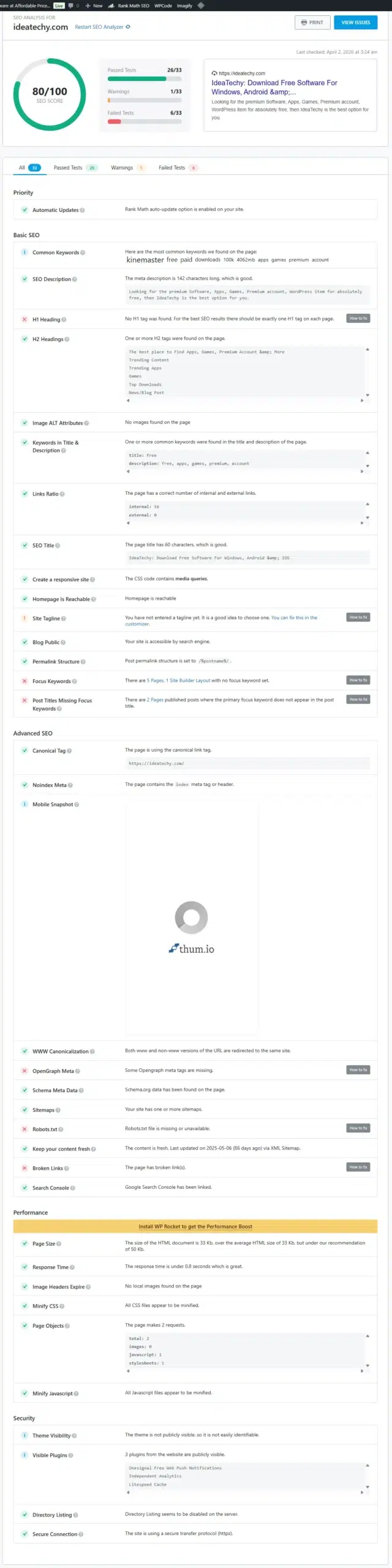
When I started using the Rank Math SEO Analyzer, it gave me a clear overview of my website health. I could see my SEO score, passed tests, and issues in one place.
Instead of guessing what’s wrong, it shows exactly what to fix step by step. This made improving my site much easier and more structured.
Here’s what I usually check inside the SEO Analyzer:
- SEO score with passed, warning, and failed tests
- Basic SEO issues like missing headings or meta tags
- Advanced SEO checks like canonical tags and schema
- Performance issues like page size and response time
- Security checks like HTTPS and plugin visibility
This tool helped me find problems I didn’t even know existed.
#8: Rank Tracker & Analytics
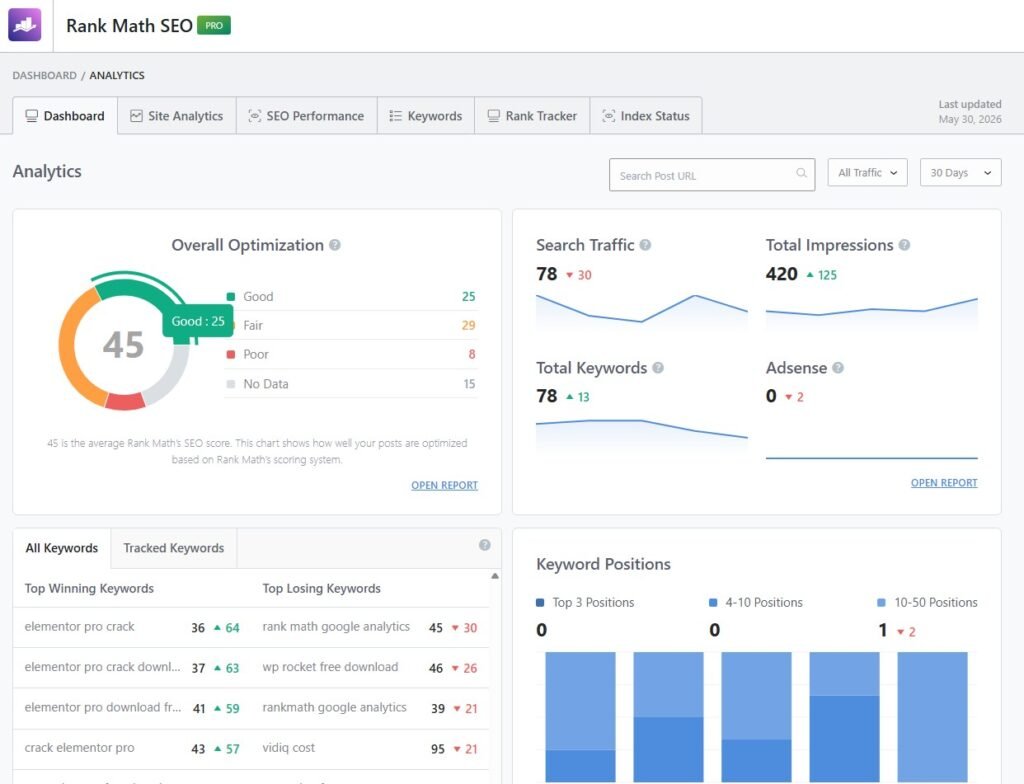
One hidden feature that I use regularly is Rank Math Analytics. Instead of opening multiple tools, it gives me a quick overview of my website’s SEO performance directly inside the WordPress dashboard.
As shown in the screenshot, Rank Math Analytics displays important metrics such as search traffic, impressions, keyword rankings, tracked keywords, and overall SEO optimization scores. This helps me monitor performance, identify ranking opportunities, and track SEO progress without leaving my website dashboard.
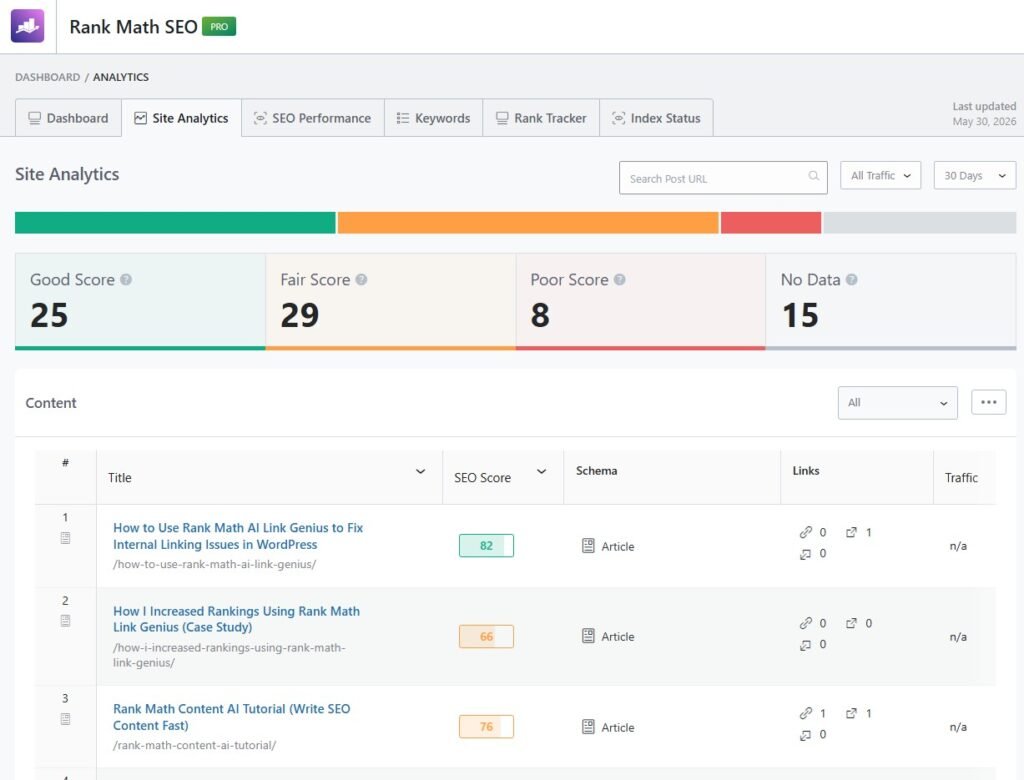
This section gives me a clear overview of how well my content is optimized by grouping posts into Good, Fair, and Poor SEO scores. Instead of manually checking every article, I can instantly identify which posts need improvement.
As shown in the screenshot, Rank Math displays each post’s SEO score, schema type, internal links, external links, and traffic data in one place.
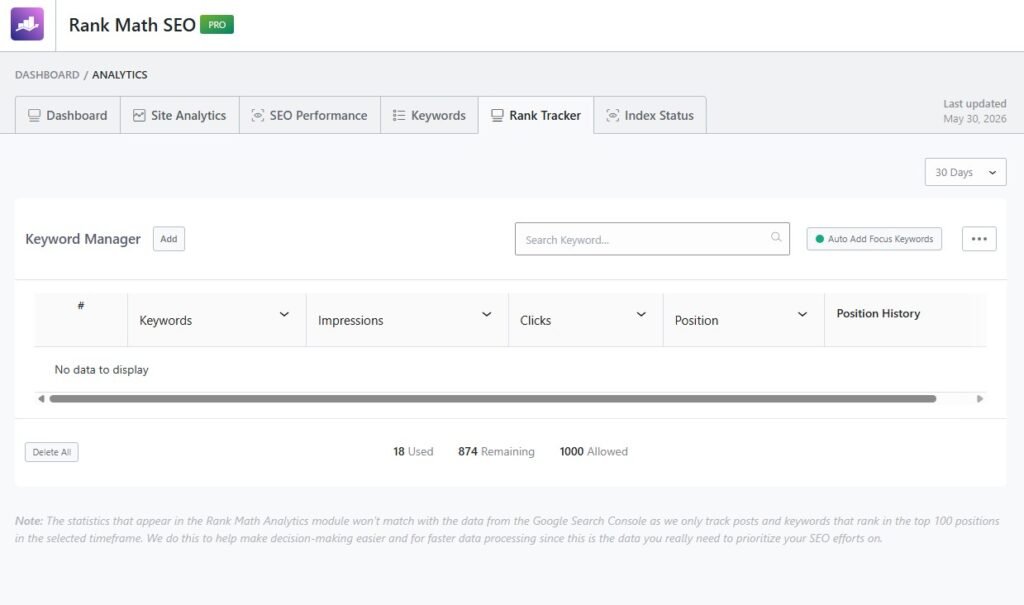
The Keyword Manager feature that helps me track important keywords directly inside WordPress. It allows me to monitor keyword impressions, clicks, ranking positions, and position history without constantly switching to Google Search Console.
This makes it easier to identify which keywords are improving, which ones are losing rankings, and where I should focus my optimization efforts next.
To add a keyword for tracker, you just have to click on the Add button.
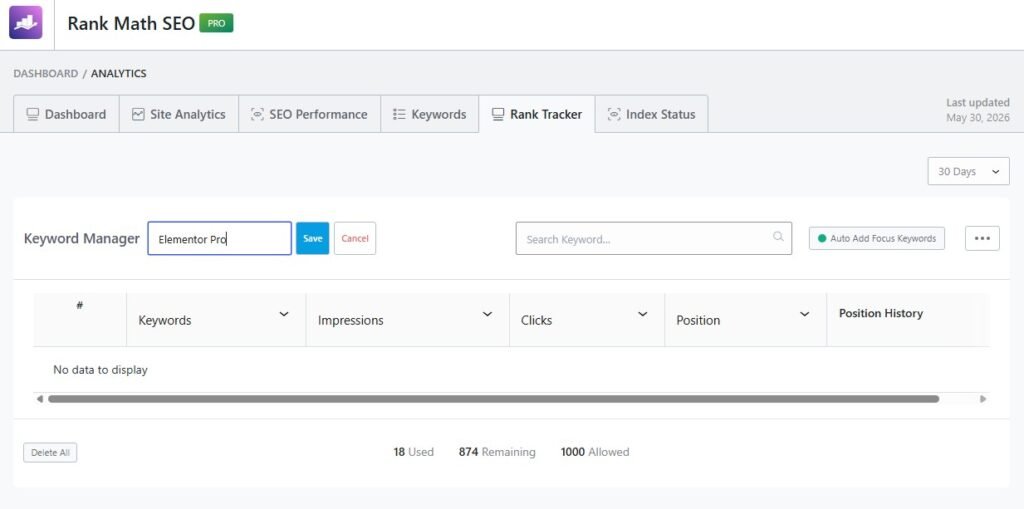
Now you’ve to type your focus keyword and click on the Save button. Then you can easily find all the data, like keyword position, impressions, click at one place.
#9: Image SEO
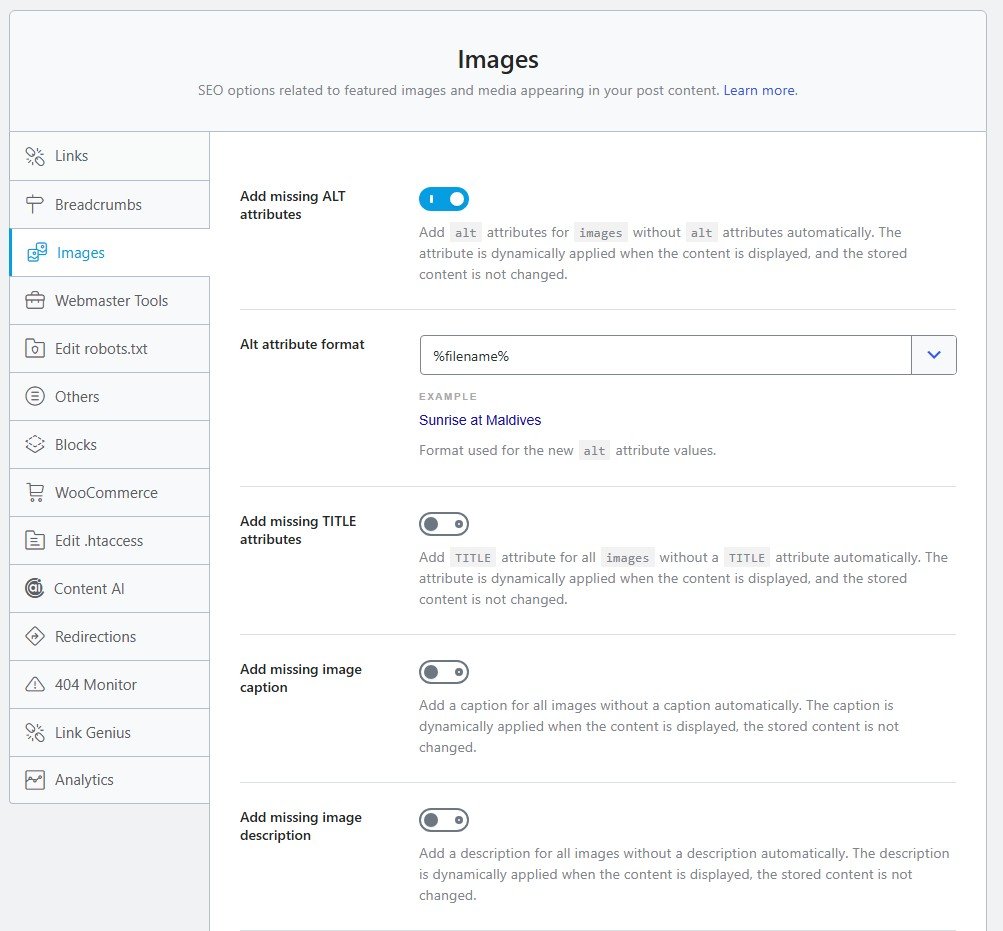
Another hidden Rank Math feature that many users ignore is Image SEO. As shown in the screenshot, Rank Math can automatically add missing ALT attributes, image titles, captions, and descriptions. This saves a lot of time, especially on websites with hundreds of images where manually optimizing every image would be difficult.
I personally enable the automatic ALT attribute option because it helps search engines understand what my images are about. Proper image optimization can improve accessibility, increase the chances of appearing in Google Image Search, and provide additional relevance signals to search engines.
While image SEO alone won’t rank a website, it contributes to overall on-page optimization and can help boost rankings when combined with quality content and proper keyword targeting.
#10: Google Trends & Search Console Integration
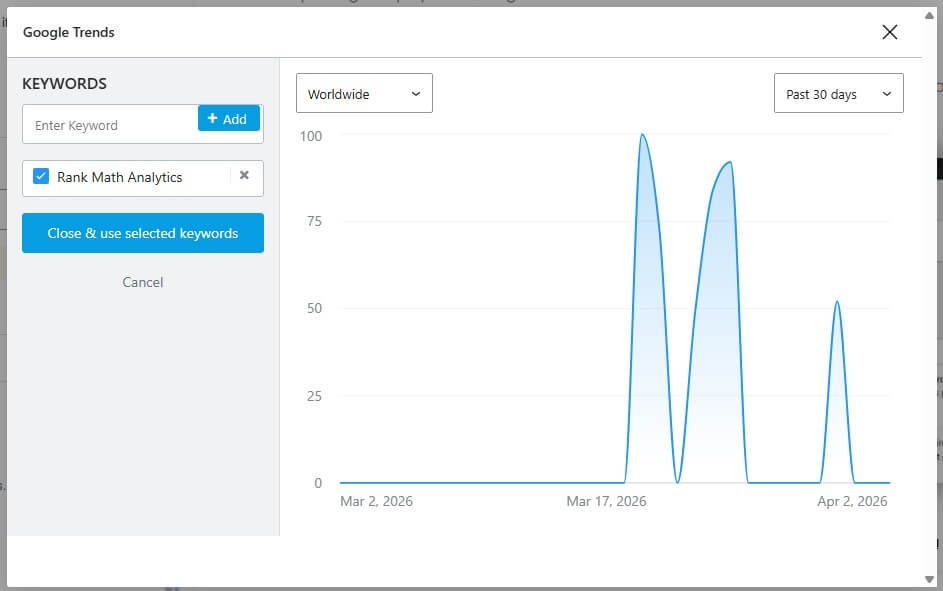
When I started using Rank Math’s Google Trends feature, it helped me understand keyword demand better. I can see how a keyword is performing over time without leaving WordPress.
I use this to pick trending keywords before writing content. This helped me target topics that actually get search traffic.
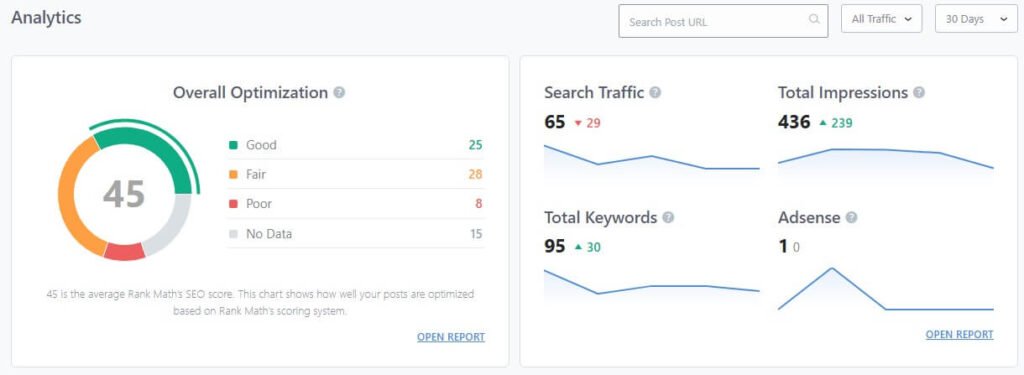
When I connected Rank Math with Google Search Console, I stopped switching between tools. All my important data started showing inside WordPress.
I can see clicks, impressions, keywords, and performance in one place. This made it easier to track results and improve my content.
Which Hidden Feature Improved My Rankings the Most?
Out of all the features I covered, AI Link Genius had the biggest impact. It improved my internal linking strategy without requiring hours of manual work.
Before using AI Link Genius, many posts had few internal links. Some important pages were completely disconnected from the rest of my website.
After enabling it, I quickly found new linking opportunities. My website structure became stronger and easier for search engines to crawl.
Content AI comes in second place for me. However, AI Link Genius delivered faster and more noticeable SEO improvements.
FAQ
In my experience, AI Link Genius is the most useful hidden feature because it automates internal linking and improves website structure.
No. AI Link Genius is currently a premium feature available for Rank Math Pro users.
Yes. Internal links help search engines discover content, understand page relationships, and distribute authority across your website.
Absolutely. Most features are beginner-friendly and can be enabled with just a few clicks.
I recommend starting with AI Link Genius, Content AI, and Schema Generator because they provide the fastest SEO benefits.
Not completely. However, Rank Math Analytics brings important Search Console data directly into WordPress, making monitoring much easier.
No SEO tool can guarantee rankings. However, these features help optimize your website and increase your chances of performing better in search results.
Final Thoughts
Conclusion
When I first started using Rank Math SEO, I only relied on its basic optimization features. Over time, I discovered that some of its most powerful tools were hidden behind modules and settings that many users never explore.
Features like AI Link Genius, Content AI, Instant Indexing, Analytics, and Schema Generator helped me streamline my SEO workflow and improve my website’s overall performance. While no single feature guarantees higher rankings, combining these tools can make a significant difference.
The biggest lesson I learned is that SEO is not a one-time task. To maintain and improve rankings, you should regularly update old content, fix technical issues, improve internal linking, and monitor your website’s performance.
If you’re already using Rank Math, take a few minutes to explore these hidden features. You might discover opportunities that can help your website perform better in search results, just as they did for mine.