
When I first started working on my website, I noticed my rankings were not improving. Even though I was publishing content regularly, many pages were not getting traffic.
After checking my site, I realized the problem was internal linking. Some important posts had very few links, and many pages were completely orphan.
I tried fixing this manually, but it took a lot of time and I still missed many opportunities. That’s when I decided to try Rank Math Link Genius.
In this case study, I’ll share how I used it to improve my internal linking and increase my rankings.
What is Rank Math AI Link Genius?
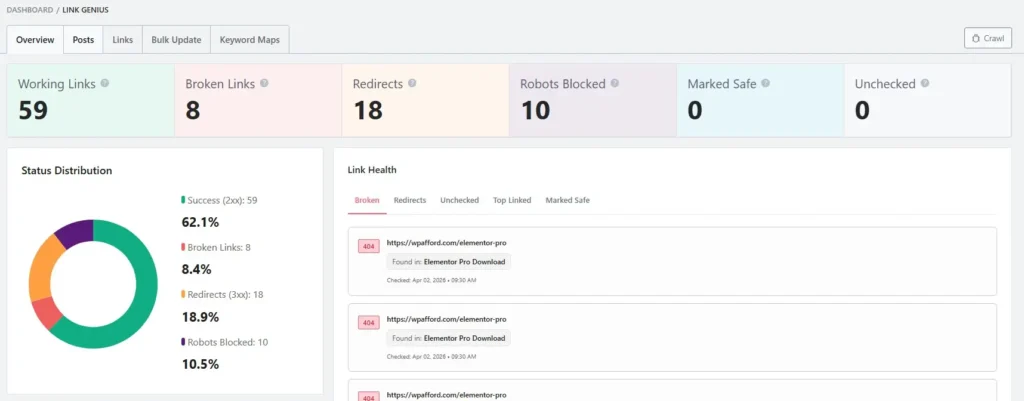
Rank Math AI Link Genius is an internal linking tool built into the Rank Math SEO plugin. It helps you find and add internal links across your website without doing everything manually.
Instead of searching for pages one by one, it scans your content and suggests relevant linking opportunities. This makes the process faster and more accurate.
It also helps fix common issues like orphan pages and poor link structure. By improving internal links, it makes your site easier to crawl and understand.
From my experience, it works like a smart assistant for internal linking. It saves time and helps build a stronger SEO structure.
My Website Before Using Link Genius
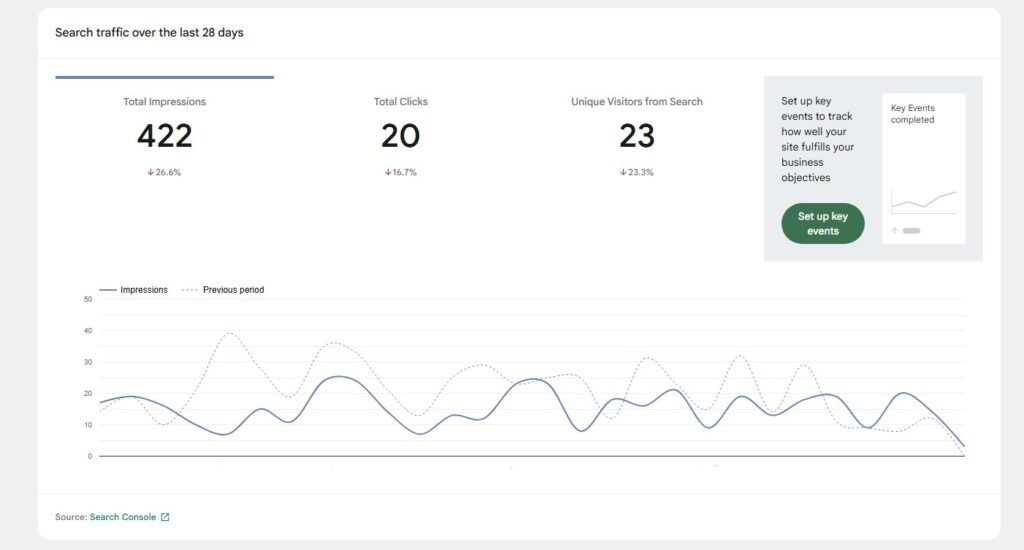
Before using Rank Math Link Genius, my website performance was not stable. In the last 28 days, I had 422 impressions, 20 clicks, and 23 unique visitors, but the overall trend was declining.
Even though the site was getting impressions, the clicks were very low. This showed that my content was not properly optimized or connected through internal links.
The graph also shows inconsistent performance. Some days had small spikes, but there was no steady growth in traffic or visibility.
At this stage, my internal linking structure was weak. Many pages were not connected properly, which made it harder for search engines to crawl and rank my content.
My Strategy Using Rank Math Link Genius
Instead of making random changes, I followed a clear and focused process using Rank Math Link Genius.
I worked step by step to improve internal linking, fix weak areas, and build a stronger SEO structure.
Scanning My Website
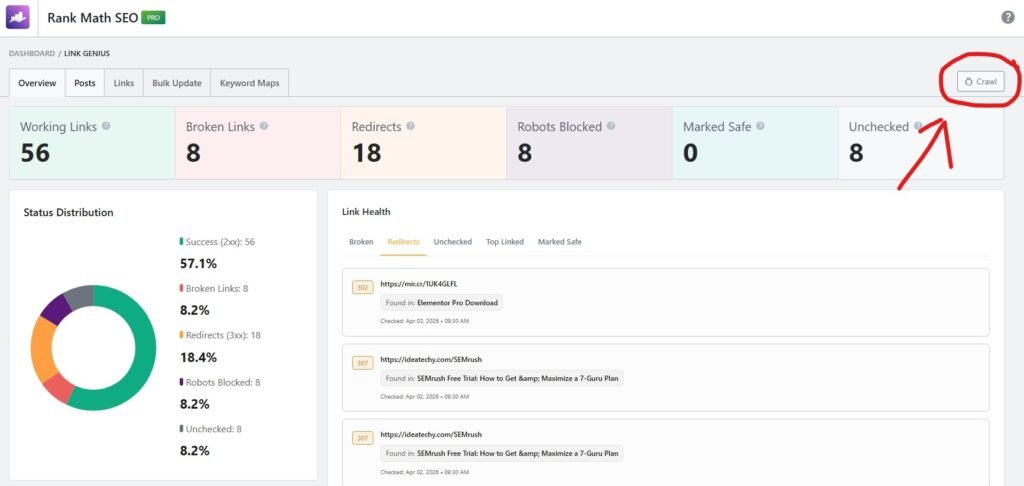
To scan your whole website using the Rank Math AI Link Genius, you have to go to the Rank Math Link Genius settings page.
Once you come to this page, you have to click on the “Crawl” button to go to the next step.
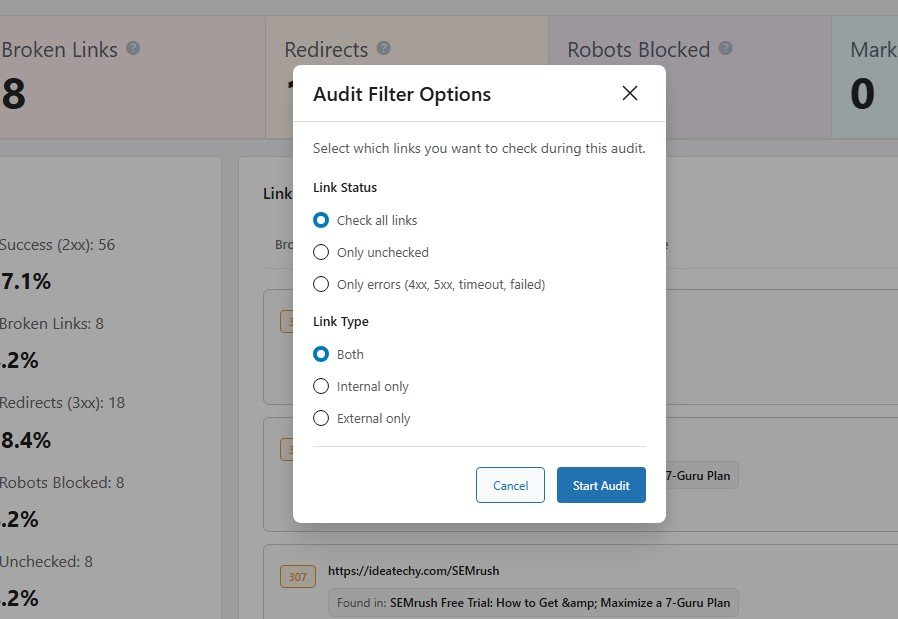
Then this pop-up will appear on your screen. Now you have to choose “Check all links” from Link Status, then choose “Both” from Link type, and click on the Start Audit button.
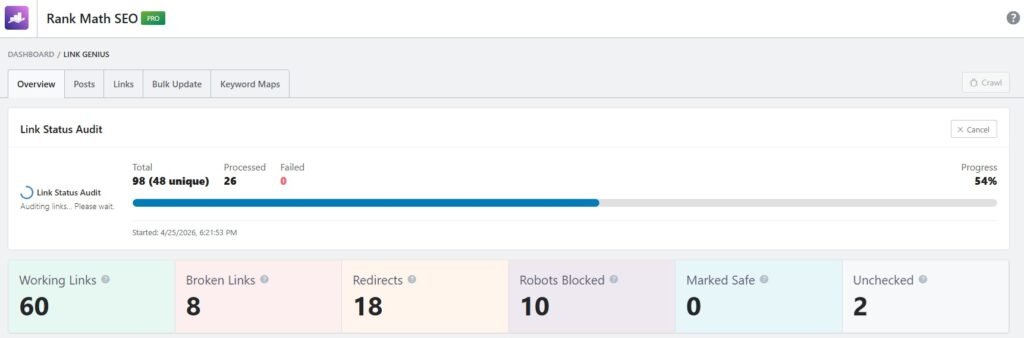
Then the crawl process will start, and you have to wait for a few seconds or minutes based on your website’s size.
Finding Orphan Pages
Orphan pages are posts or pages on your website that have no internal links pointing to them. This means neither users nor search engines can easily find them through your site structure.
Even if the content is valuable, orphan pages often don’t get indexed or ranked properly. Without internal links, they miss out on link authority and visibility, which can hurt your overall SEO performance.
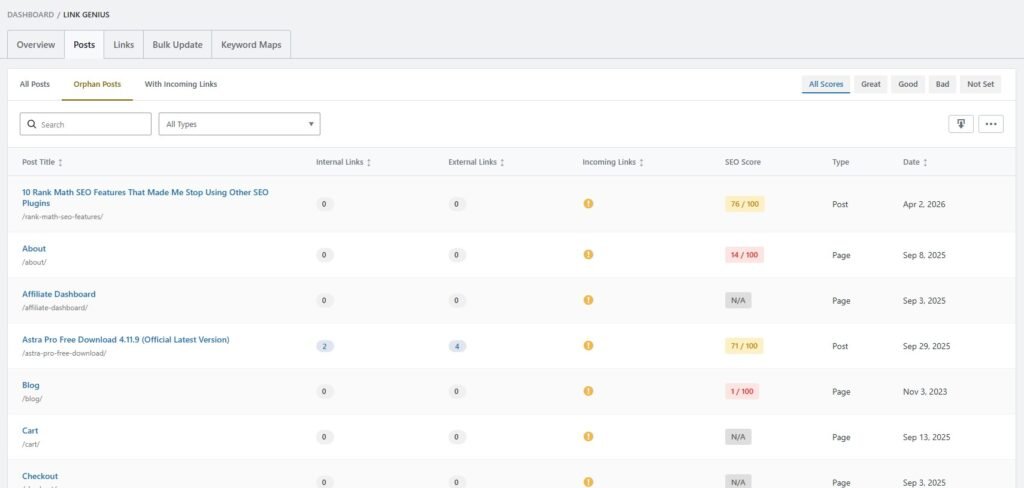
To orphan a post with the help of RankMath AI Link Genius features, you have to go to the Link Genius page, then Post, then click on orphan post.
On this page, you’ll find all the page posts with no incoming links.
To add a link to those orphan posts, you have to go with the manual method, or go with the keyword maps features.
Using Keyword Maps for Auto Internal Linking
Keyword Maps in Rank Math help you automate internal linking based on specific keywords. Instead of adding links manually, you can assign a keyword to a target URL, and the tool will automatically create links across your content.
This makes internal linking faster and more consistent. It also ensures your important pages get linked properly without missing opportunities.
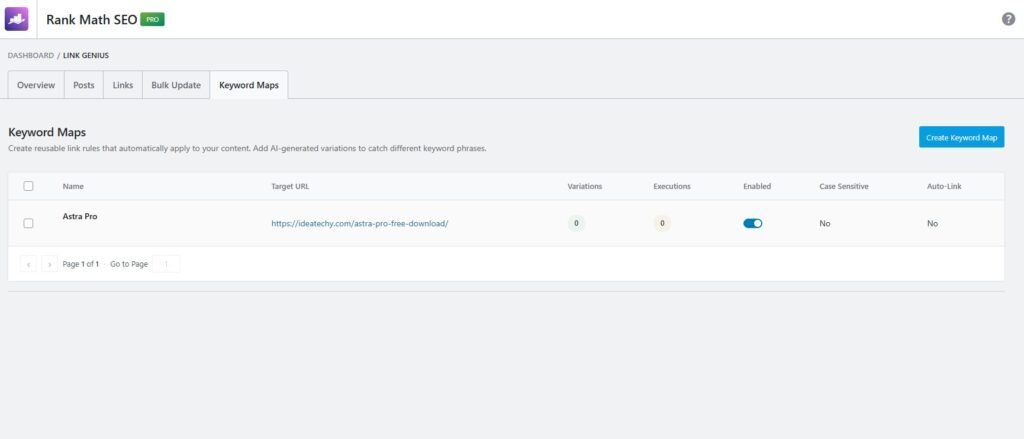
To create backlinks automatically, you have to go with these features.
At first, you have to click on the Create Keyword Map button to start this process.
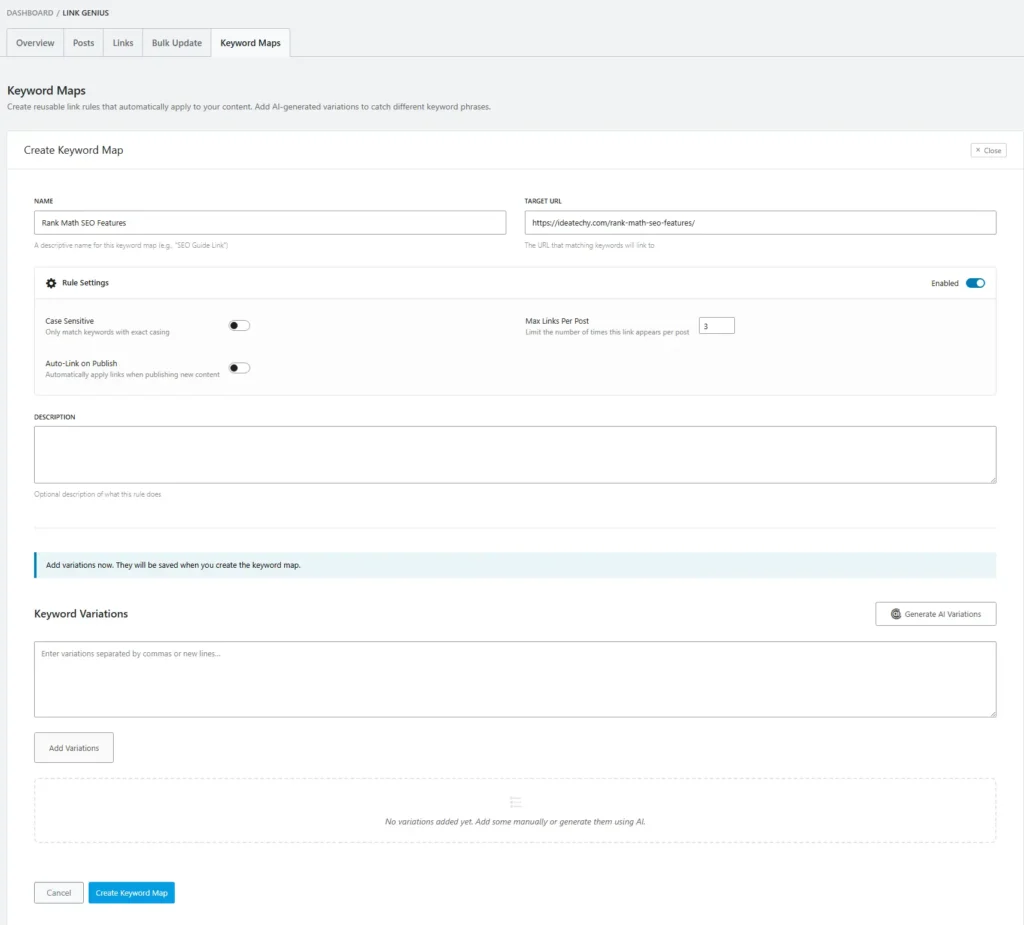
After coming to this Create Keyword Maps first step, you have to click on Name, and type your project name. Then, in the Target URL box, you have to type your URL.
Then you have to scroll down and click on the Create Keyword Maps to go to the second step.
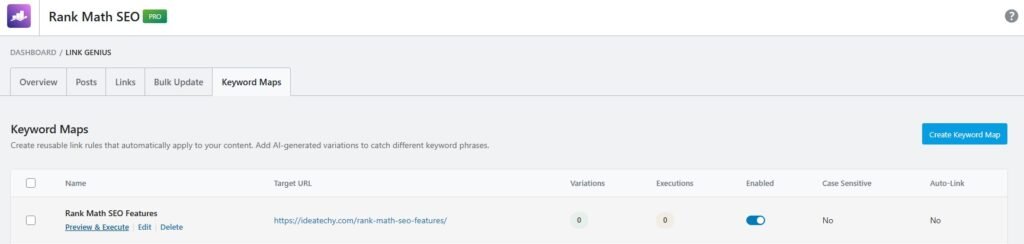
Then you have to click on the Preview & Execute text to start keyword maping.
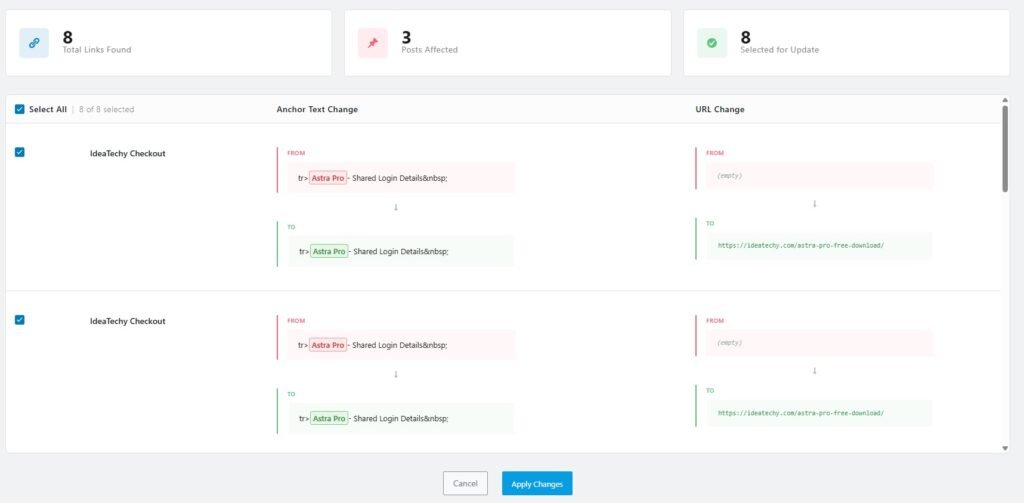
When you click on the text, this page will open. Now you’ll see a lot of backlink opportunities.
To do it, you just have to click on the Apply changes button.
Fixing Broken Links and Redirect Issues
Broken links are a common problem that can hurt both user experience and SEO performance. When users click a link and land on a 404 page, it creates frustration and reduces trust.
With Rank Math Link Genius, you can easily find broken internal links across your site. It highlights these issues so you can fix or replace them quickly.
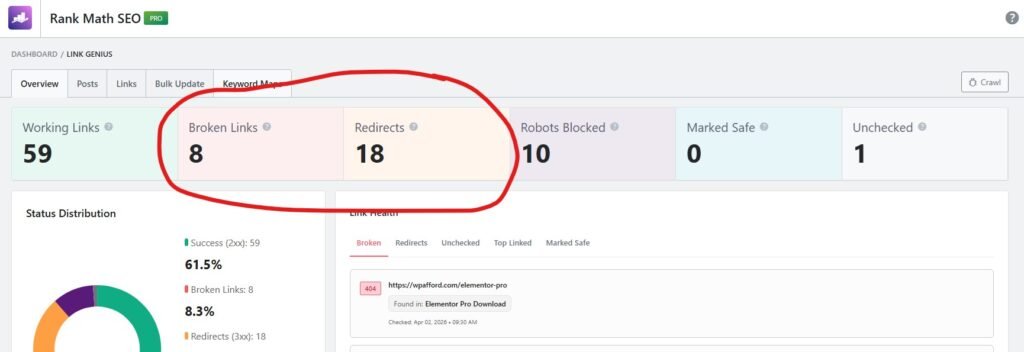
To find broken links and redirections, you need to go to the overview page and click on Broken Links or Redirects that you want to fix.
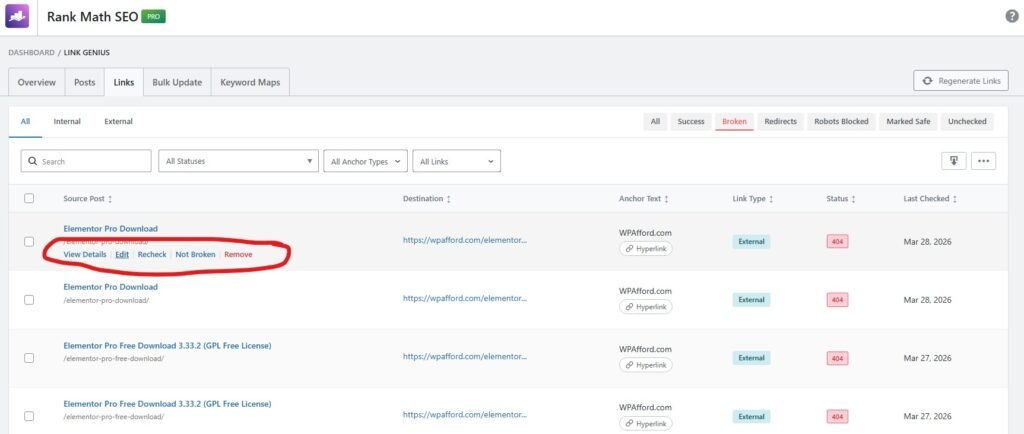
Then all the broken links will appear. Now you have a few different options: View details, Edit, Recheck, Not Broken, and Remove.
You can do whatever you want. To edit the broken link or redirect link, you just have to click on it.
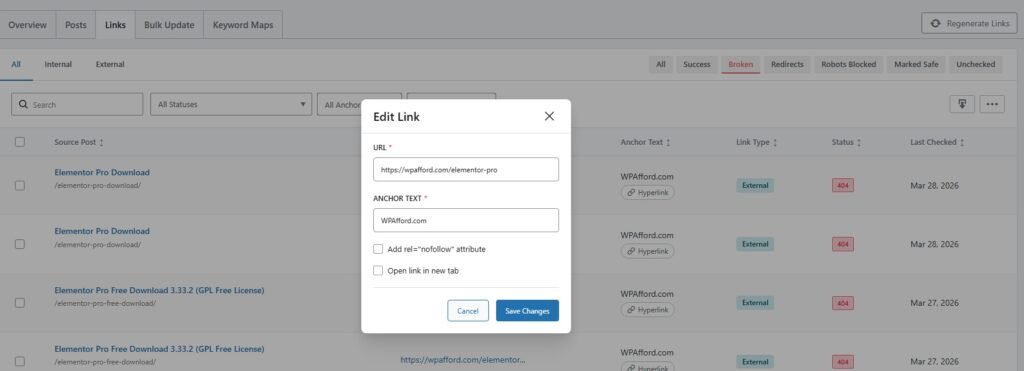
Then this page shows the broken links section inside the Links tab of Rank Math Link Genius. It lists all links that are returning a 404 error, so you can quickly identify which links are not working.
You can see details like the source post, anchor text, link type, and status. This helps you understand where the broken link exists and how it is used.
The popup window allows you to edit the selected link directly. You can update the URL, change the anchor text, or add attributes like nofollow.
Once updated, you can save changes instantly and fix the issue. This makes it easy to repair broken links without editing posts manually.
Using Bulk Update Features to Fix Broken Link
The Bulk Update feature allows you to change multiple links across your website in one go. Instead of editing each link manually, you can apply changes to URLs or anchor text using simple rules.
You can filter links based on type, status, or content, then update them instantly. This is especially useful when migrating URLs, fixing outdated links, or improving anchor text across your site.
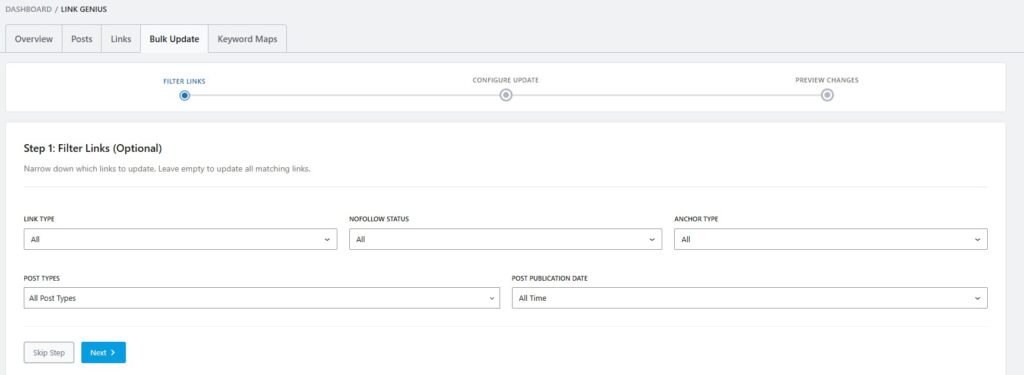
To go with the bulk update, you have to click on the Bulk update tab, then this page opens. Now you need to click on the Next button to go to the next step.
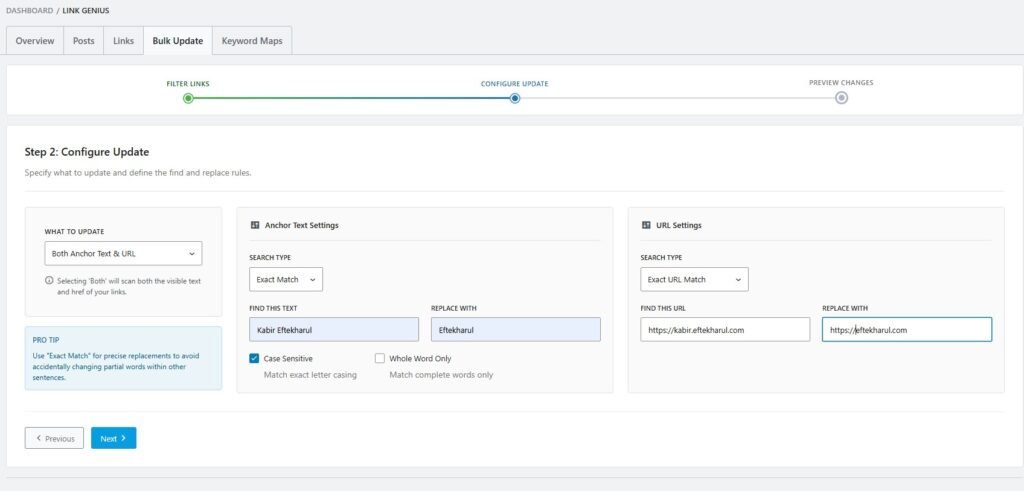
This page is where you configure what changes you want to apply. You can choose to update anchor text, URLs, or both, depending on your goal. This makes it easy to fix links, update branding, or change destinations in bulk.
In the Anchor Text Settings, you define the text to find and what to replace it with. You can also use options like exact match and case sensitivity for more accurate changes.
The URL Settings section lets you replace old URLs with new ones. This is useful for fixing broken links or updating links after a site change. Once everything is set, you can move to the next step to preview the changes.
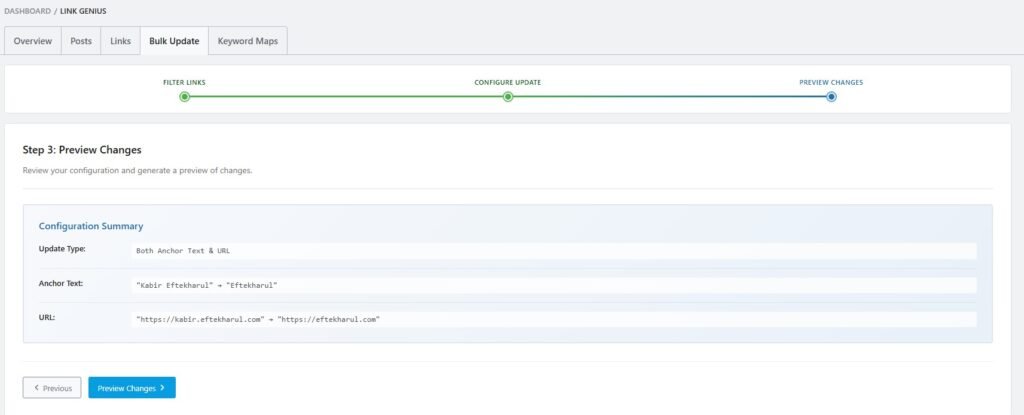
On this last step, you just need to click on the Preview Changes button to finish the process.
Key Changes I Made
I focused on improving my internal linking structure across the site. Instead of random links, I started connecting related pages properly.
I also improved my anchor text usage. I used clear and relevant keywords instead of generic words like “click here.”
Another important change was balancing link distribution. I made sure important pages received more internal links.
Finally, I connected key pages across my site. This helped search engines understand my content better and improved overall rankings.
Before vs After Results (Very Important 🔥)
The difference after using Rank Math Link Genius was very clear. Before, my website had only 422 impressions, 20 clicks, and 23 visitors, and the overall trend was declining.
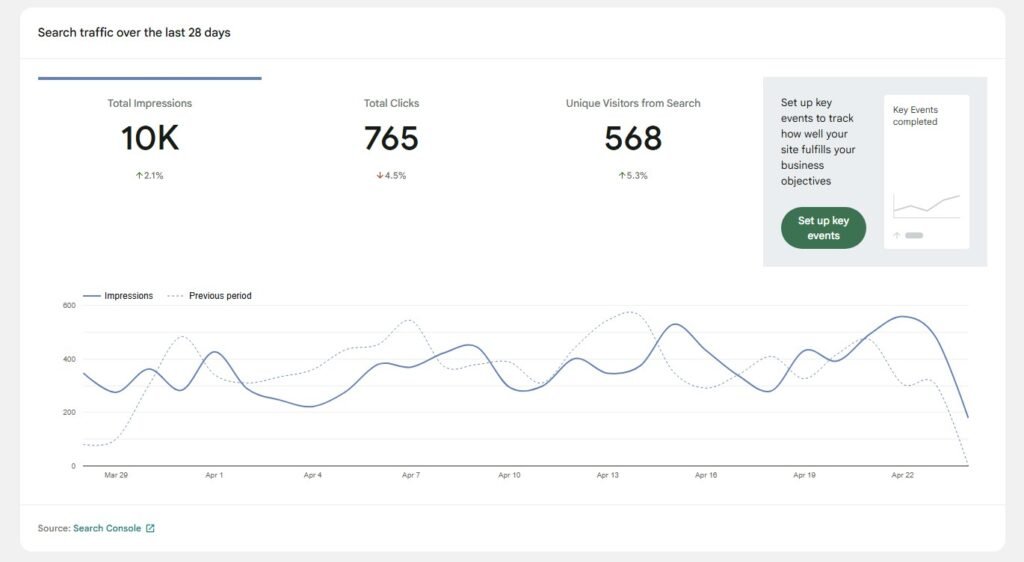
After improving my internal linking, the numbers increased significantly. My site reached around 10K impressions, 765 clicks, and 568 visitors, showing strong growth in visibility and traffic.
The graph also shows a big improvement in consistency. Instead of random spikes and drops, the traffic became more stable with higher peaks.
This clearly shows how proper internal linking can improve rankings, increase clicks, and bring more organic
Which Link Genius Features Worked Best for Me?
The Link Opportunities feature helped me find internal linking chances I was missing. It made the process faster and more accurate compared to manual linking.
The Orphan Pages detection showed me which pages had no incoming links. Fixing those pages helped improve crawlability and rankings.
The Bulk Update feature saved a lot of time by letting me update multiple links at once. This made scaling my internal linking much easier.
Finally, Keyword Maps helped me automate linking with consistent anchor text. It improved my overall site structure and link distribution.
Pros & Cons of Using Link Genius
Pros
- Automates internal linking and reduces manual work
- Suggests relevant links you might miss
- Helps connect pages with no incoming links
- Better link distribution across your site
- Manage links across many posts from one place
Cons
- AI suggestions are helpful but not always perfect
- Takes time to understand all features
- Too many links can look unnatural if not controlled
- Requires Rank Math Pro for full access
- Works best when your content is already well-structured
Conclusion
Internal linking made a real difference in my SEO results. Once I improved it, my pages became easier to crawl and started ranking better.
Before that, manual linking was slow and inconsistent. I was missing important connections between pages.
Rank Math AI Link Genius helped me fix these problems step by step. It made internal linking faster and more organized.
If you want better rankings with less effort, I recommend using Rank Math AI Link Genius. It’s a simple way to improve your SEO structure.
FAQs
It’s an AI tool that helps you find and build internal links automatically.
It improves crawlability and link structure, which helps pages rank better.
Yes, it identifies pages with no links and helps you connect them.
Yes, but Link Genius reduces most of the manual work.
Yes, it helps build a strong internal structure from the start.
Yes, you can review and edit all suggested links.
Yes, the interface is simple and easy to understand.
Yes, Link Genius is available in the Pro version.